Haute42 W-P1 Tri Mode 2.4G Wireless Touch Screen Leverless Hitbox Controller For PC/PS4/PS5/Switch Stickless Arcade Controller


Haute42 W-P1 Tri Mode 2.4G Wireless Touch Screen Leverless Hitbox Controller For PC/PS4/PS5/Switch Stickless Arcade Controller
- Free worldwide shipping
- Pre-ship QC
- Tracked delivery
- Arrives Nov 10 – Nov 19
- Import duties included
Defective, damaged or wrong item? Free replacement or refund — just send us a short video. Details
Product details & specifications
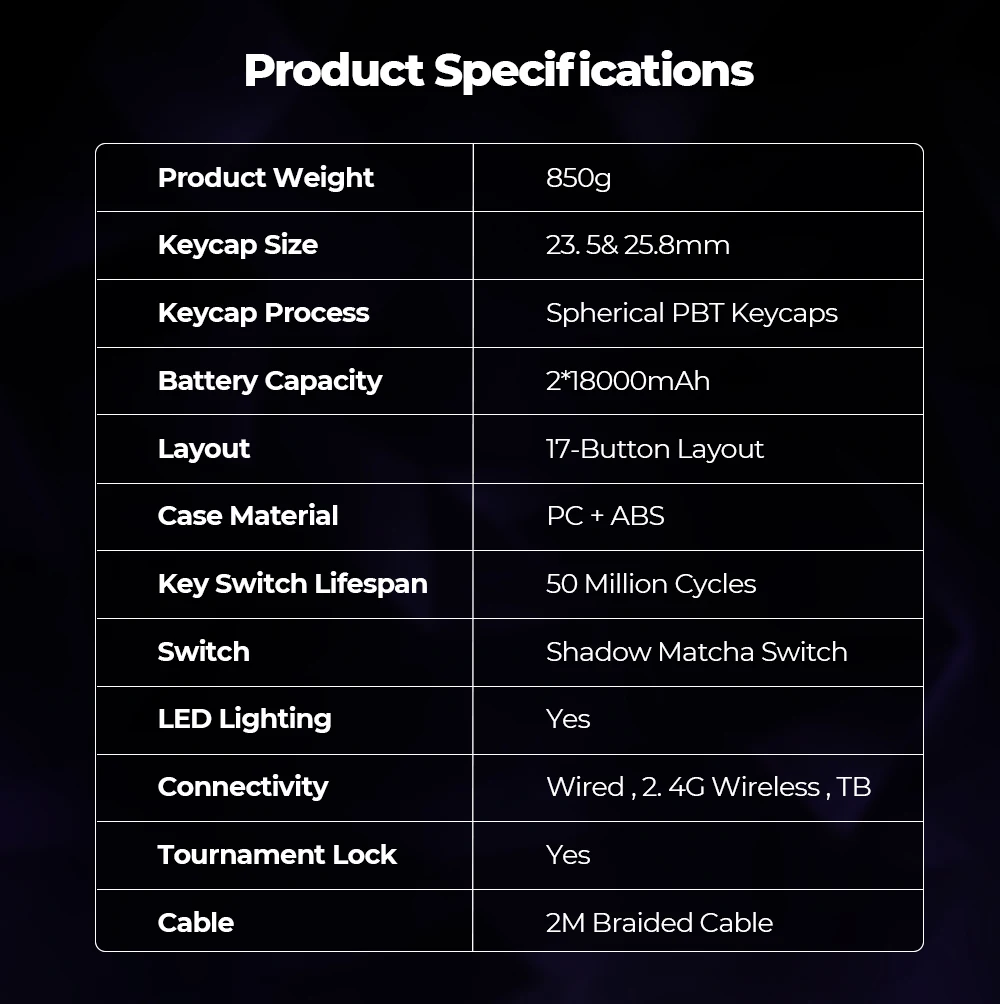
SPECIFICATIONS
Applicable Equipment: PC,Arcade Machine,Nintendo Switch
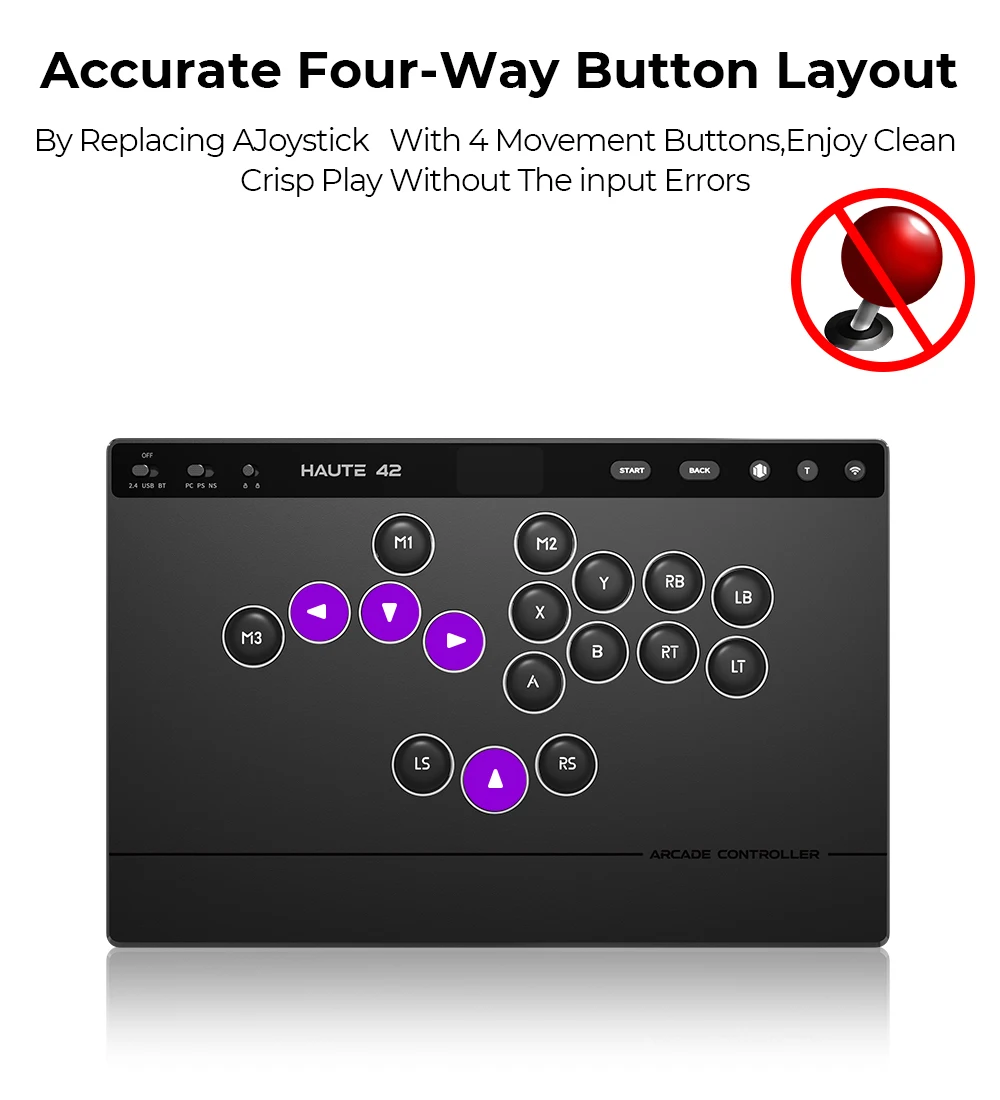
Arcade Controller: Stickless Arcade Controller
Brand Name: haute42
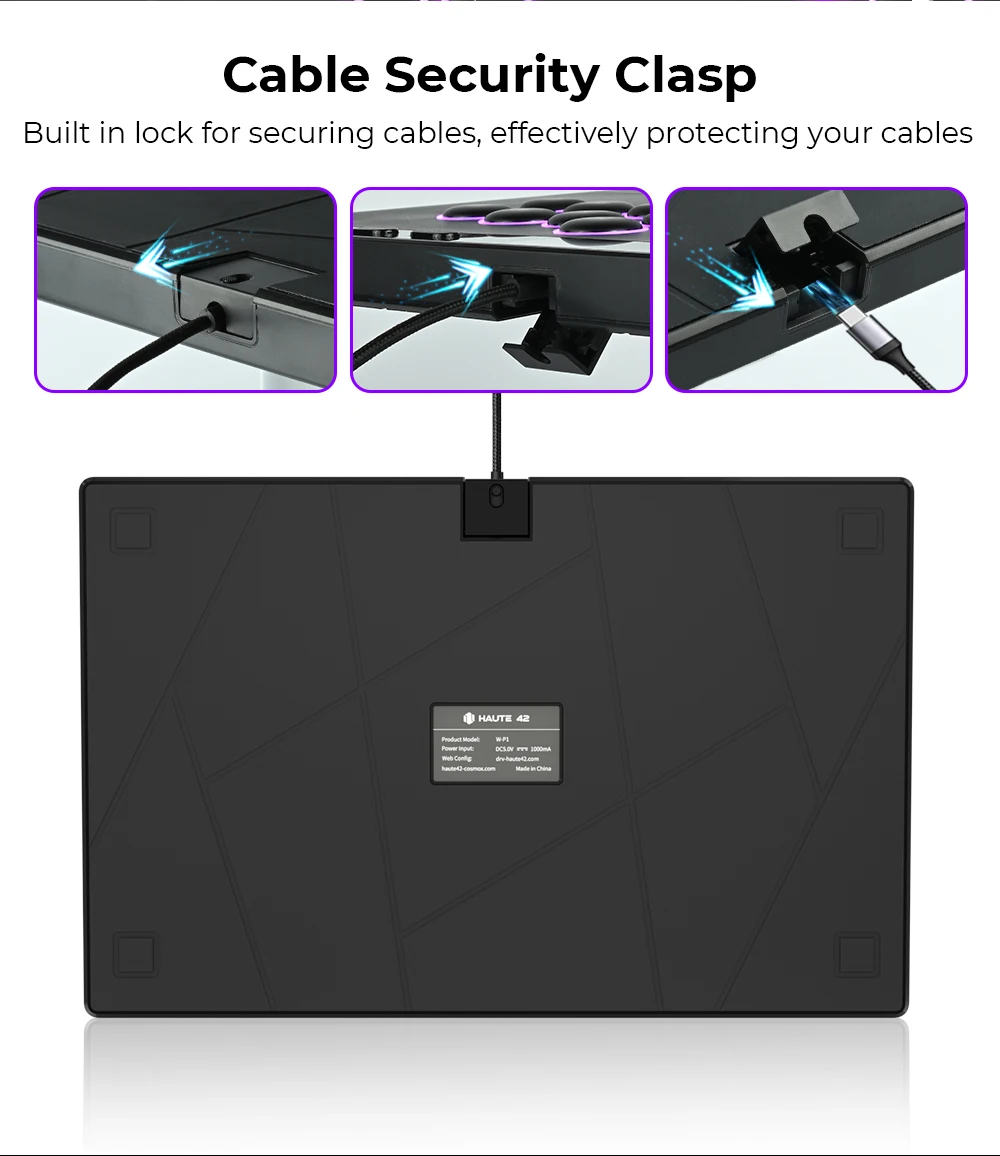
Cable: Fixed Braided Cable
Compatible Systems: Windows
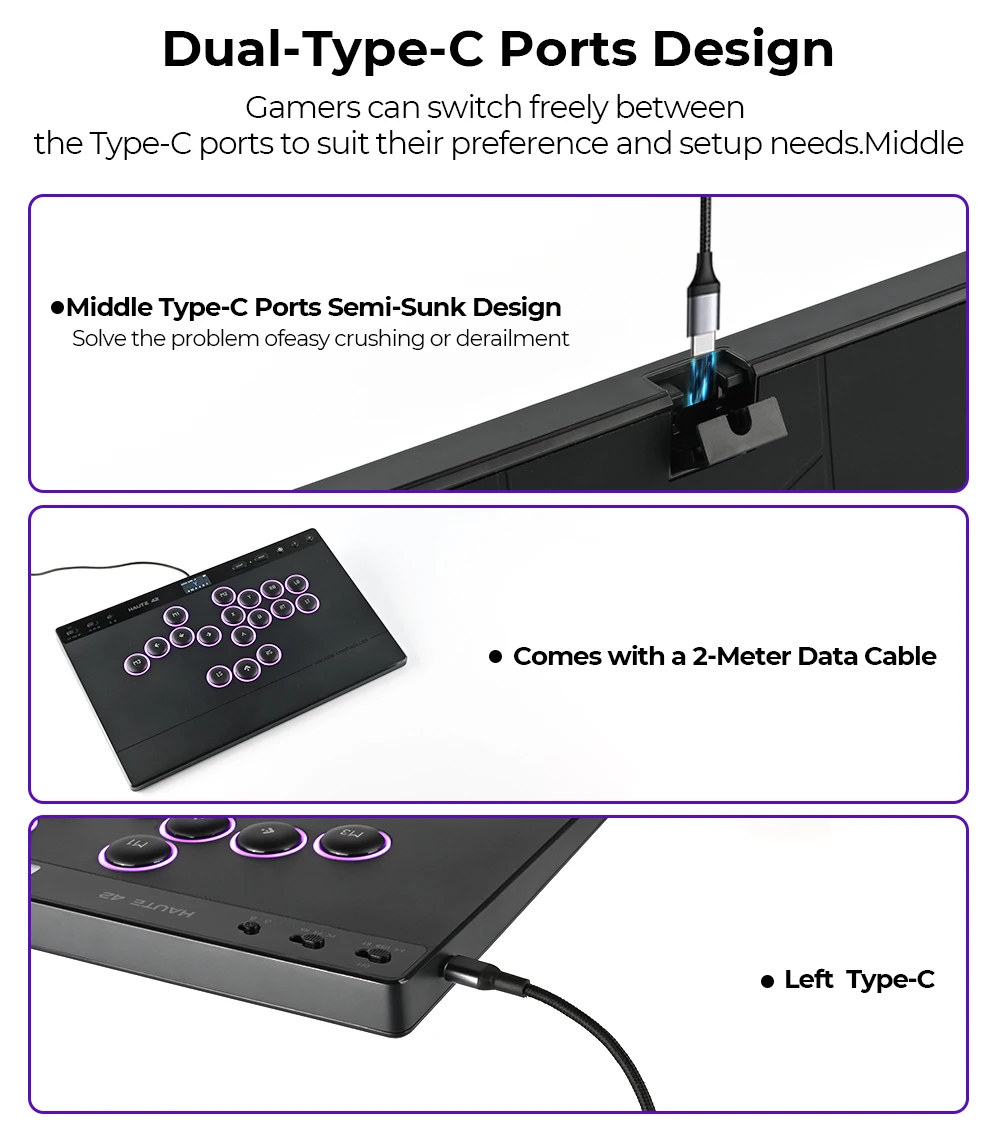
Connection Interface Types: USB-C Interface
Connectivity: Wired 2.4G Wireless TB
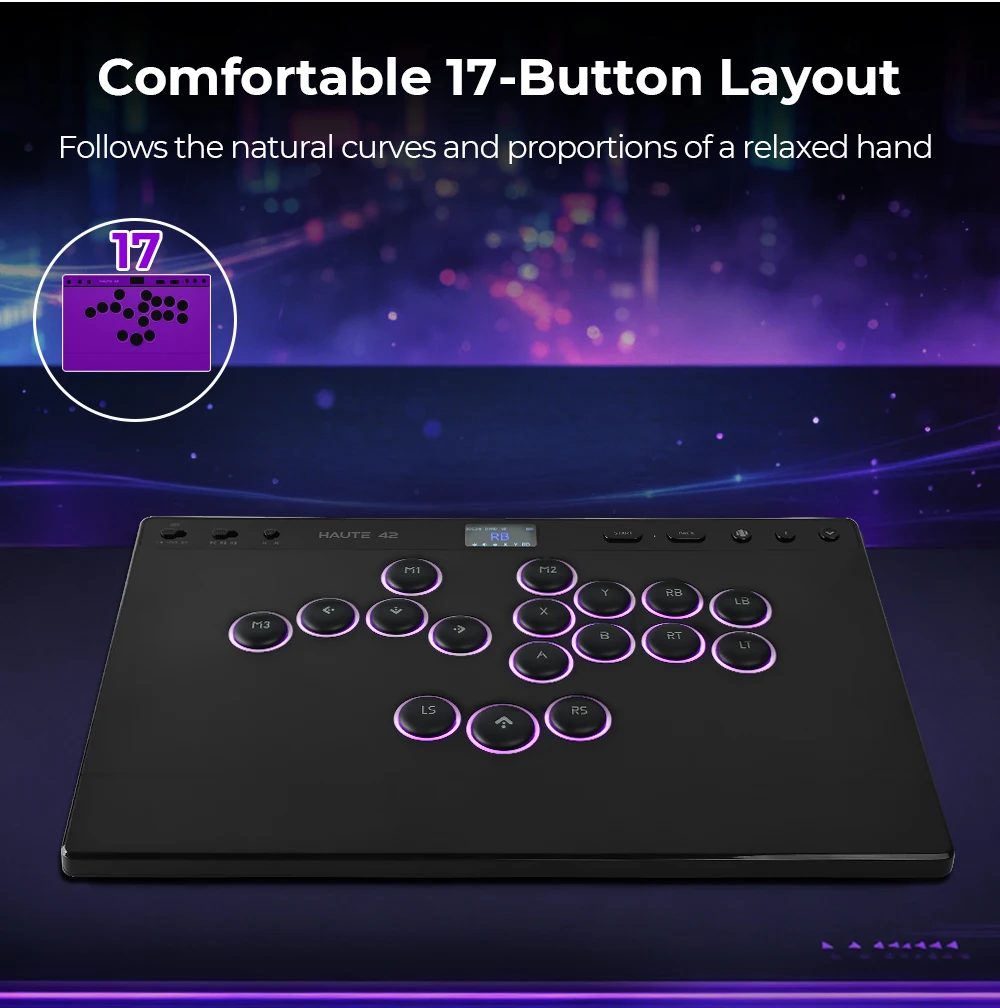
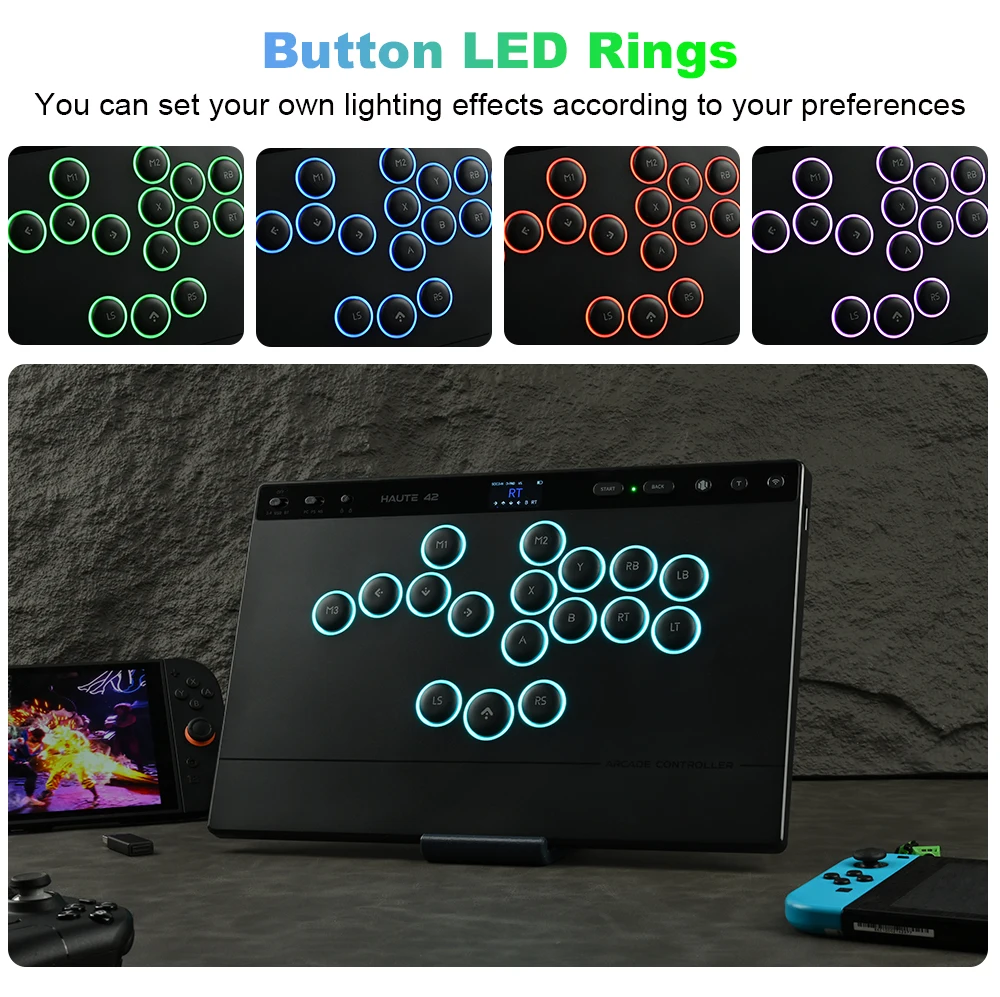
Feature: 17 button with RGB mode
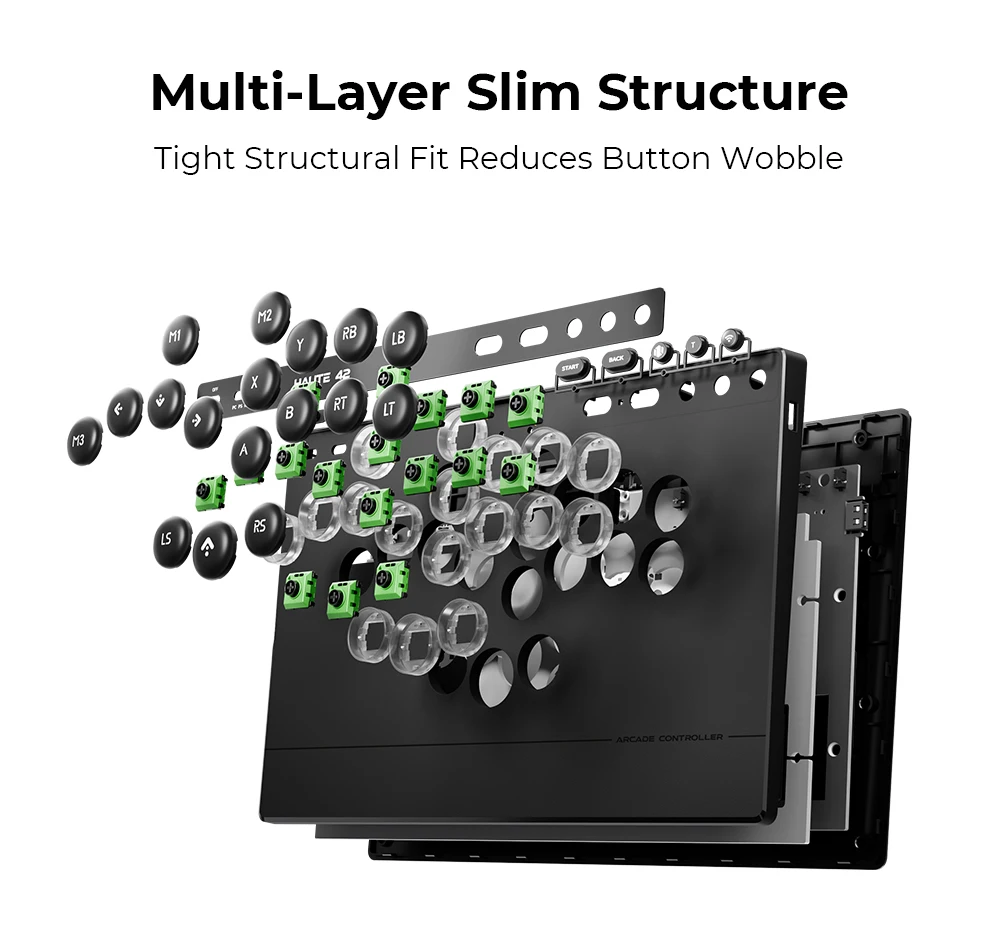
Gasket Mount: Yes
Hitbox Leverless Controller: Leverless Controller
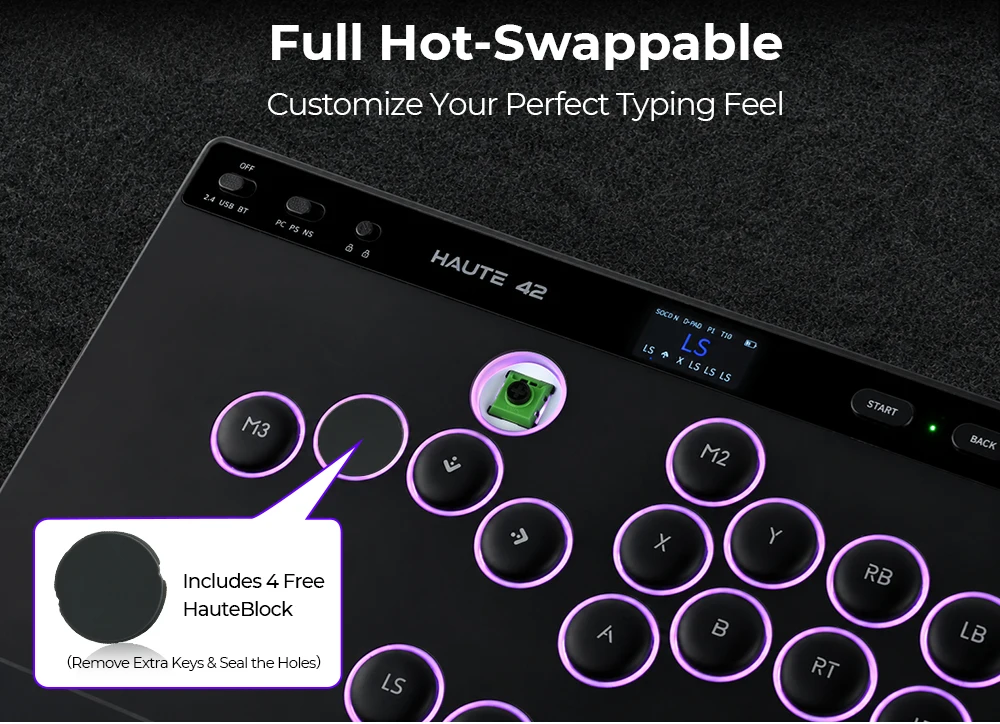
Hot Swap: Full Key Hot-swappable
Keyboard Connection Method: Wired,Wireless
Keyboard Material: PC
Keyboard layout: Others
Keyboard type: mechanical keyboard
Keycap Language: English
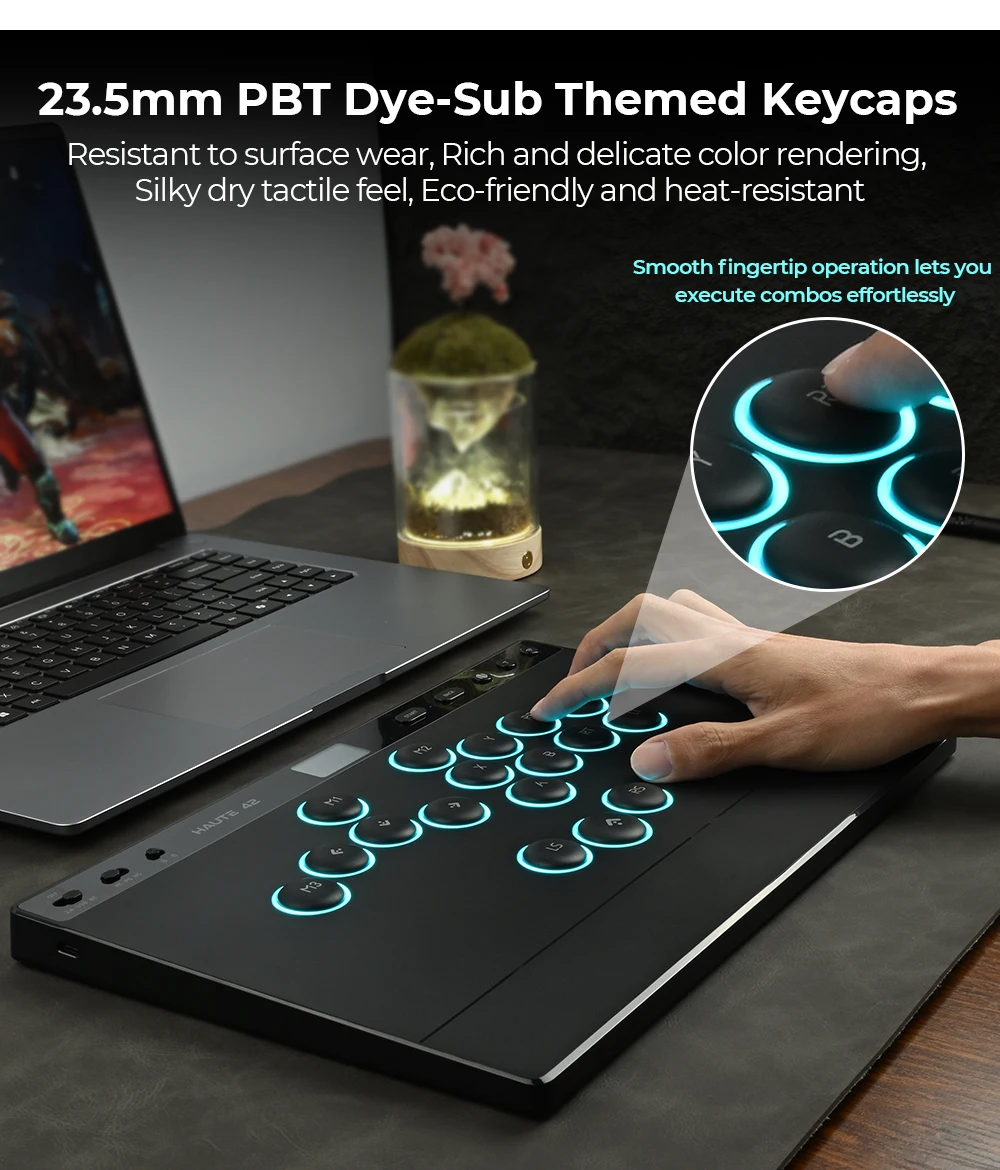
Keycap Process: Spherical PBT Keycaps
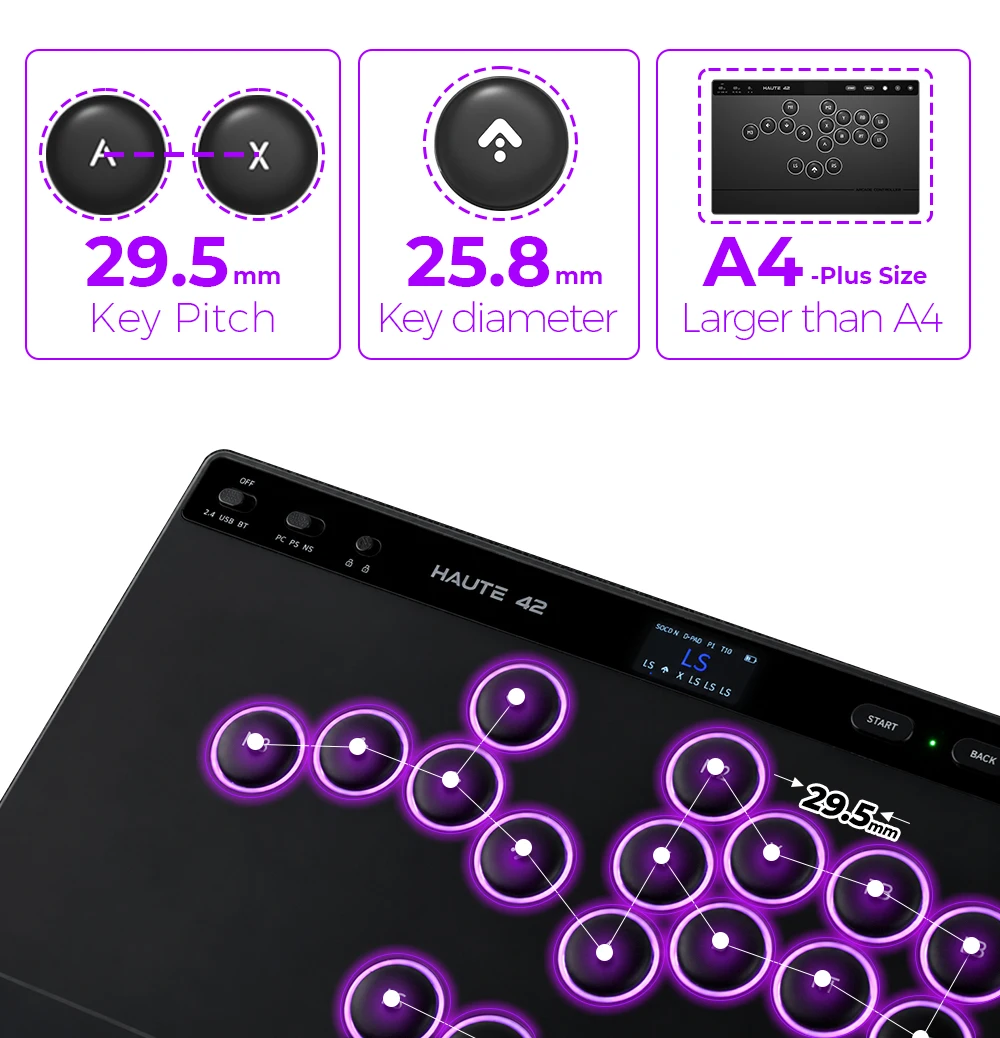
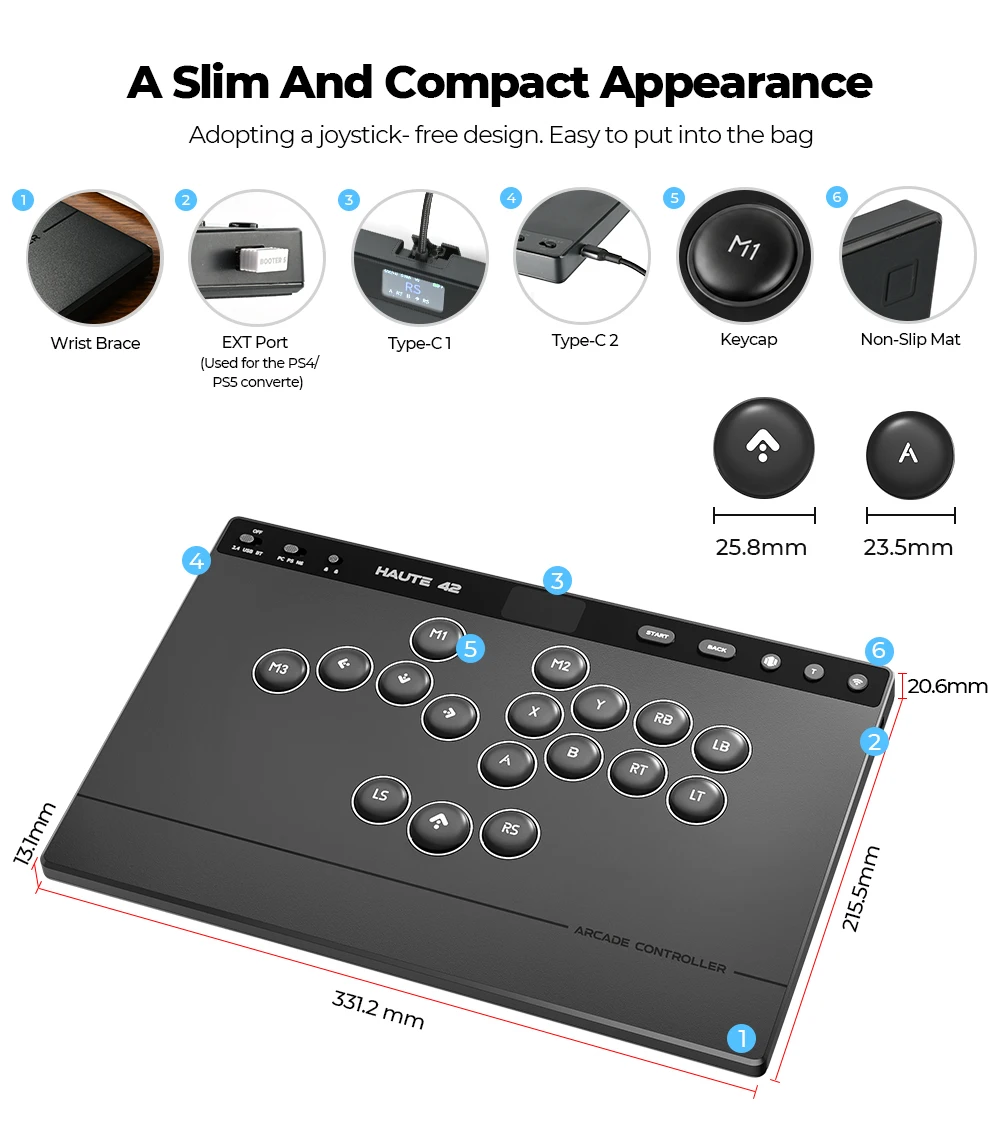
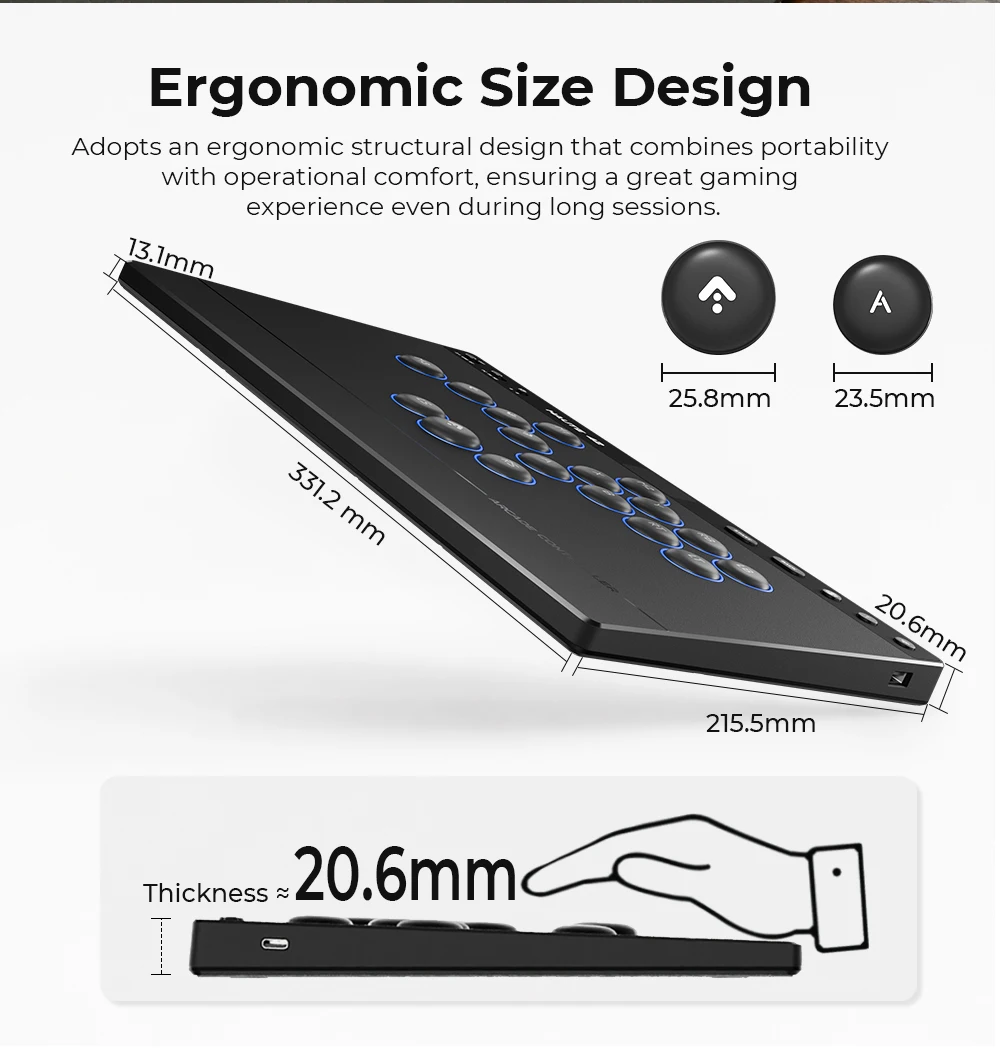
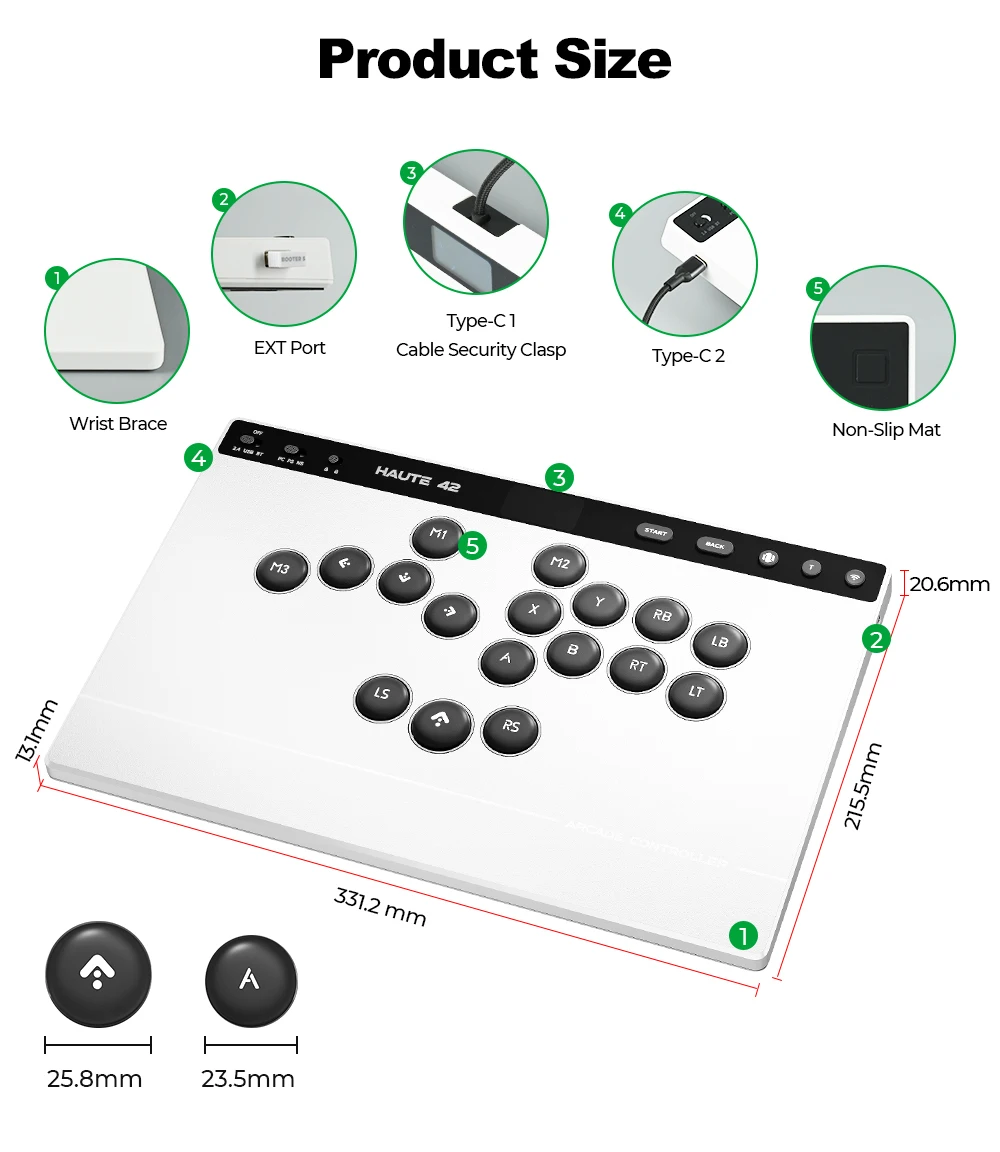
Keycap Size: 23.5& 25.8mm
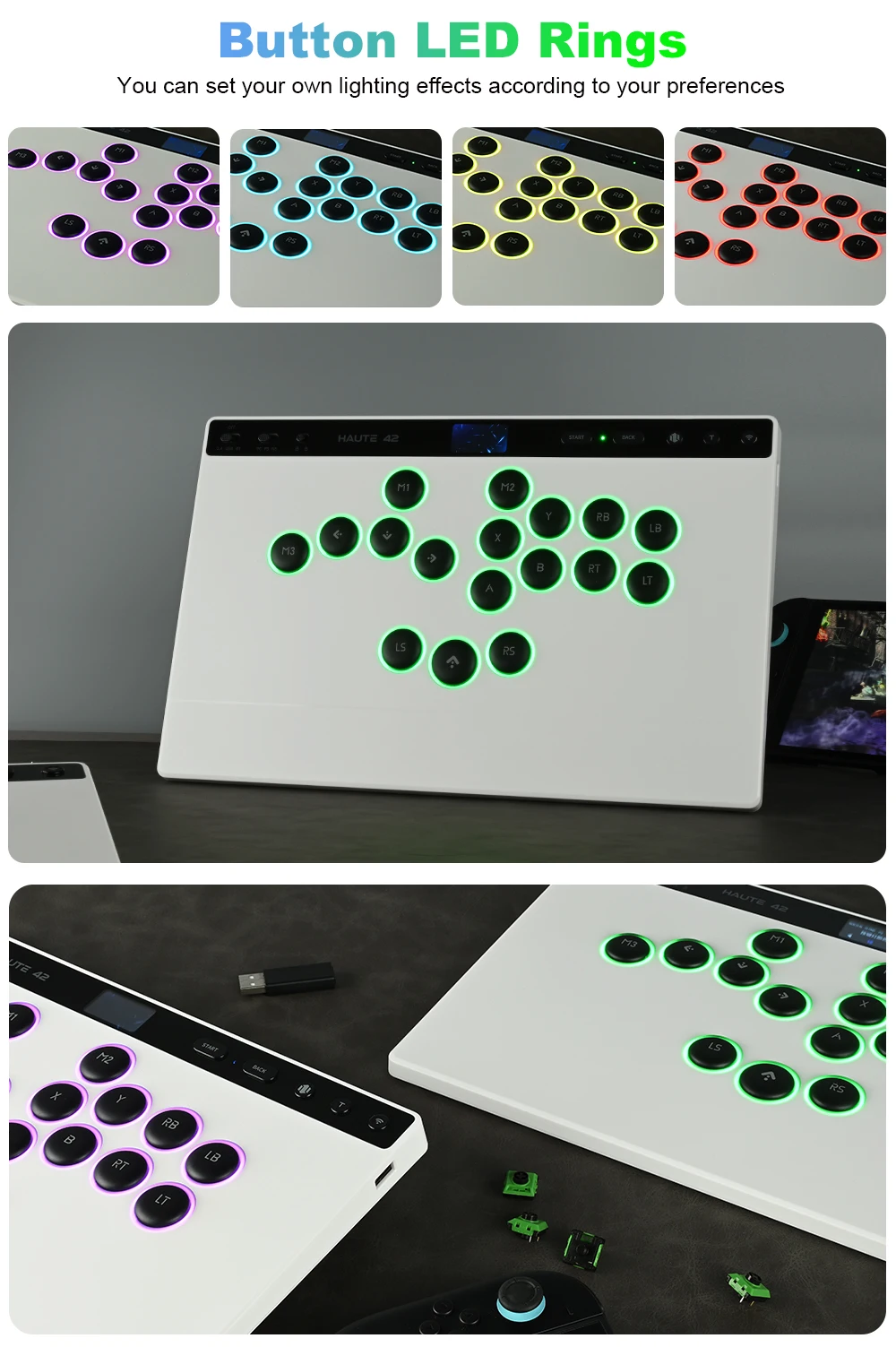
Lighting Effect: Multi-color Backlight
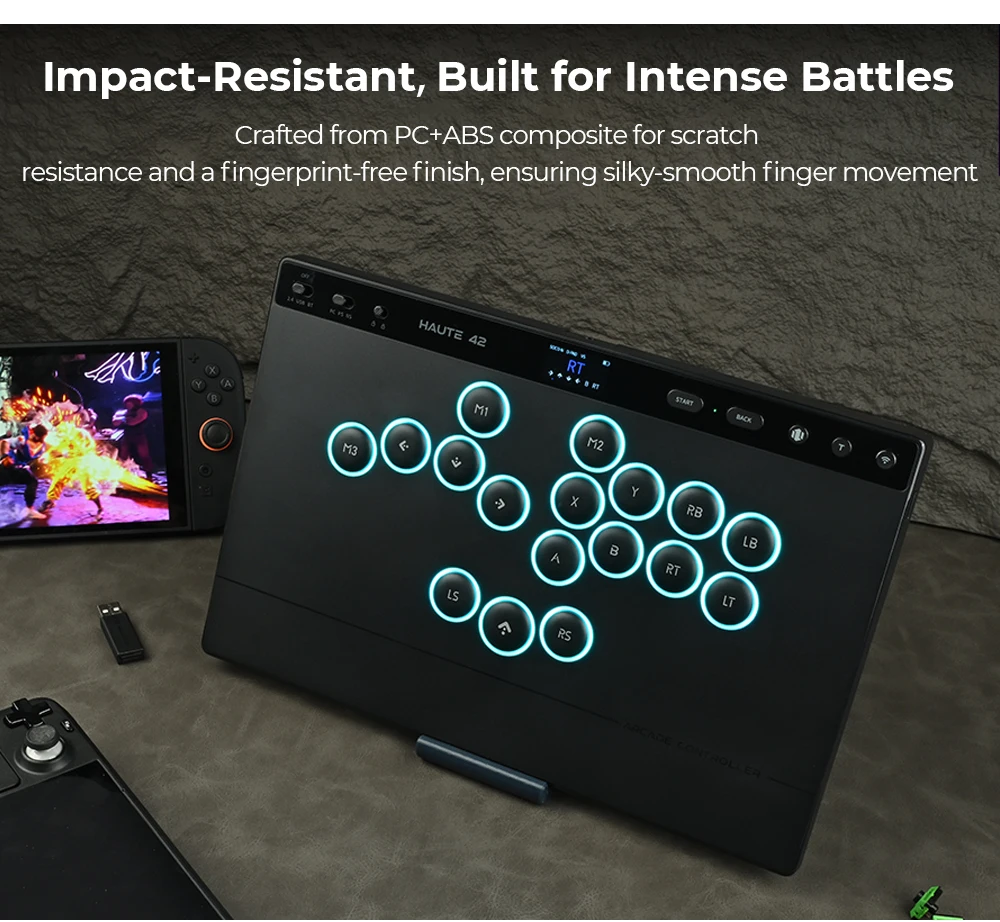
Material: PC +ABS
Origin: Mainland China
Polling: 4000hz
Product Name: 2.4G Wireless Hitbox Leverless Controller
Product Weight: 850g
Rechargeable: Yes
Support for driver software: Yes
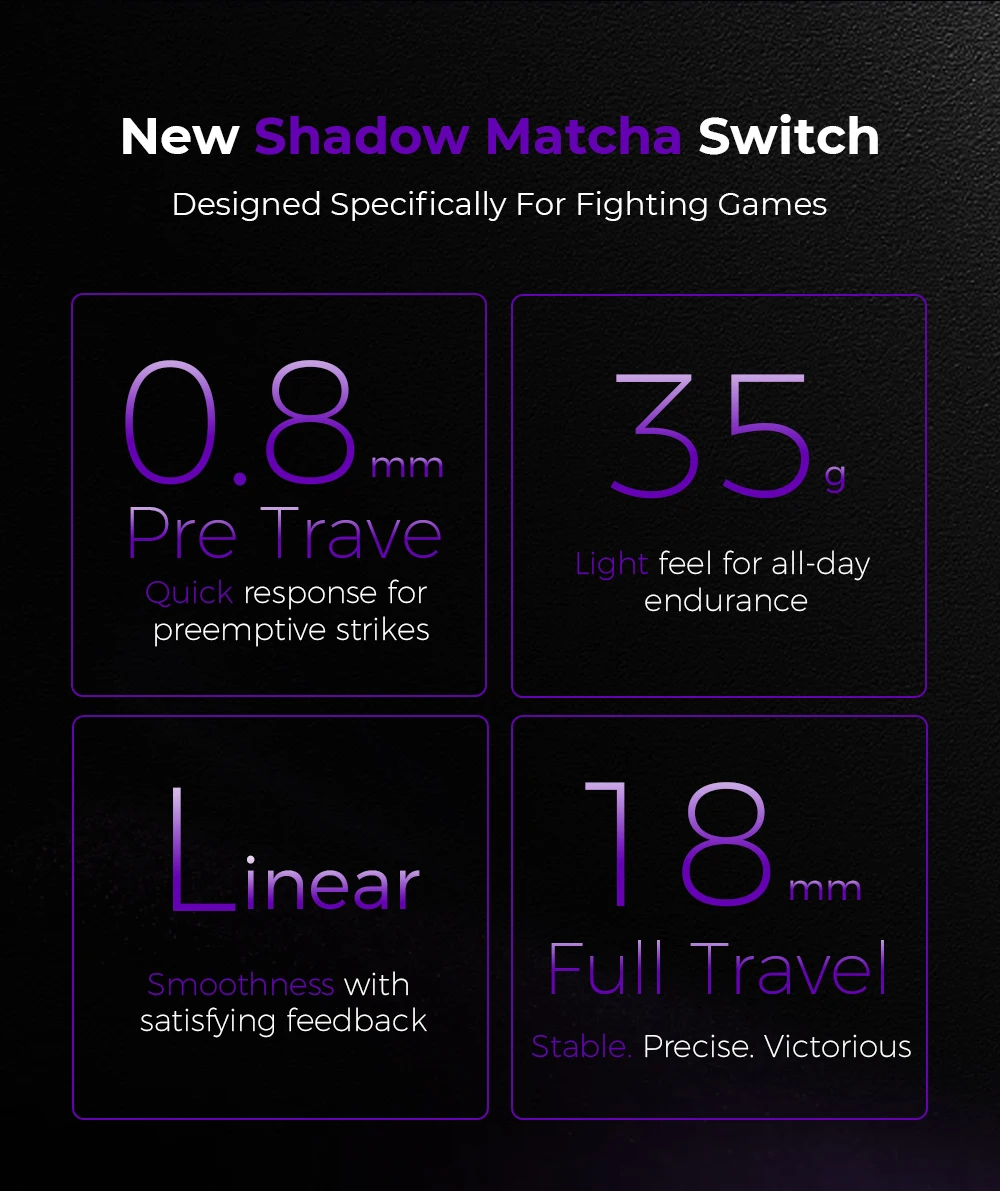
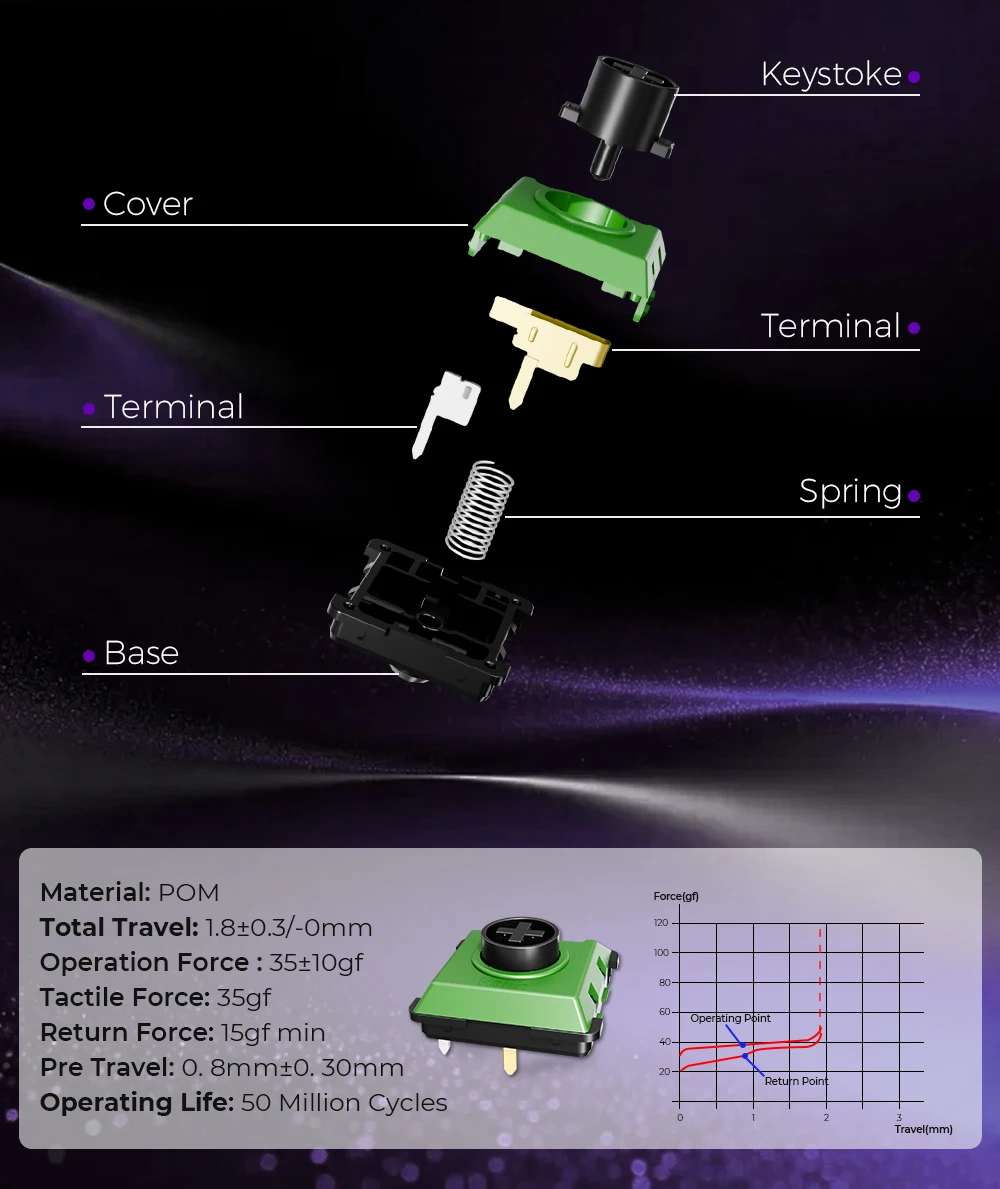
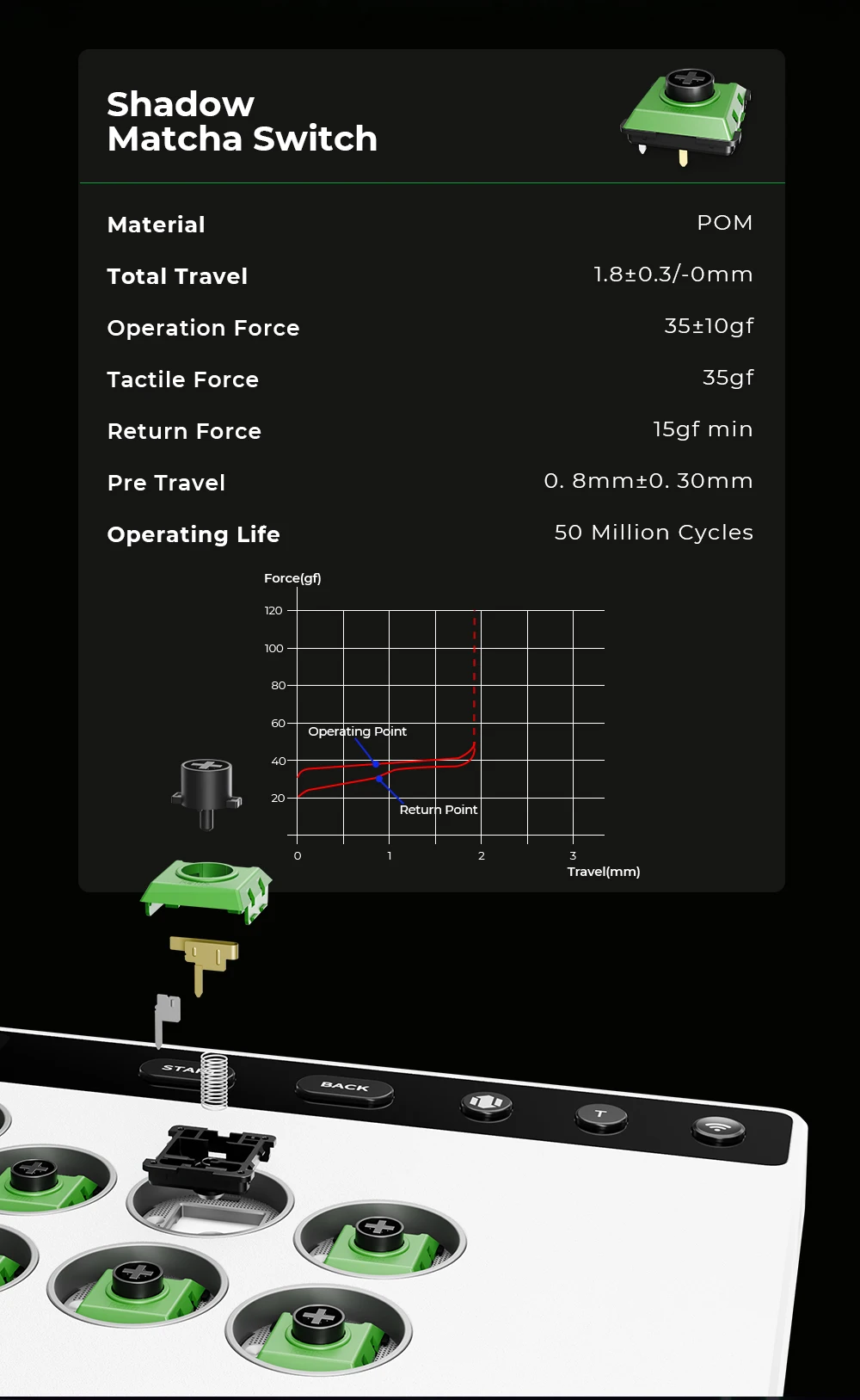
Switch Brand: Kailh
Switch Life: 50 million times
Type: Leverless Controller
Wireless Touch Screen Hitbox: Hitbox Controller
Wrist rest: Yes
keyboard switch type: Others
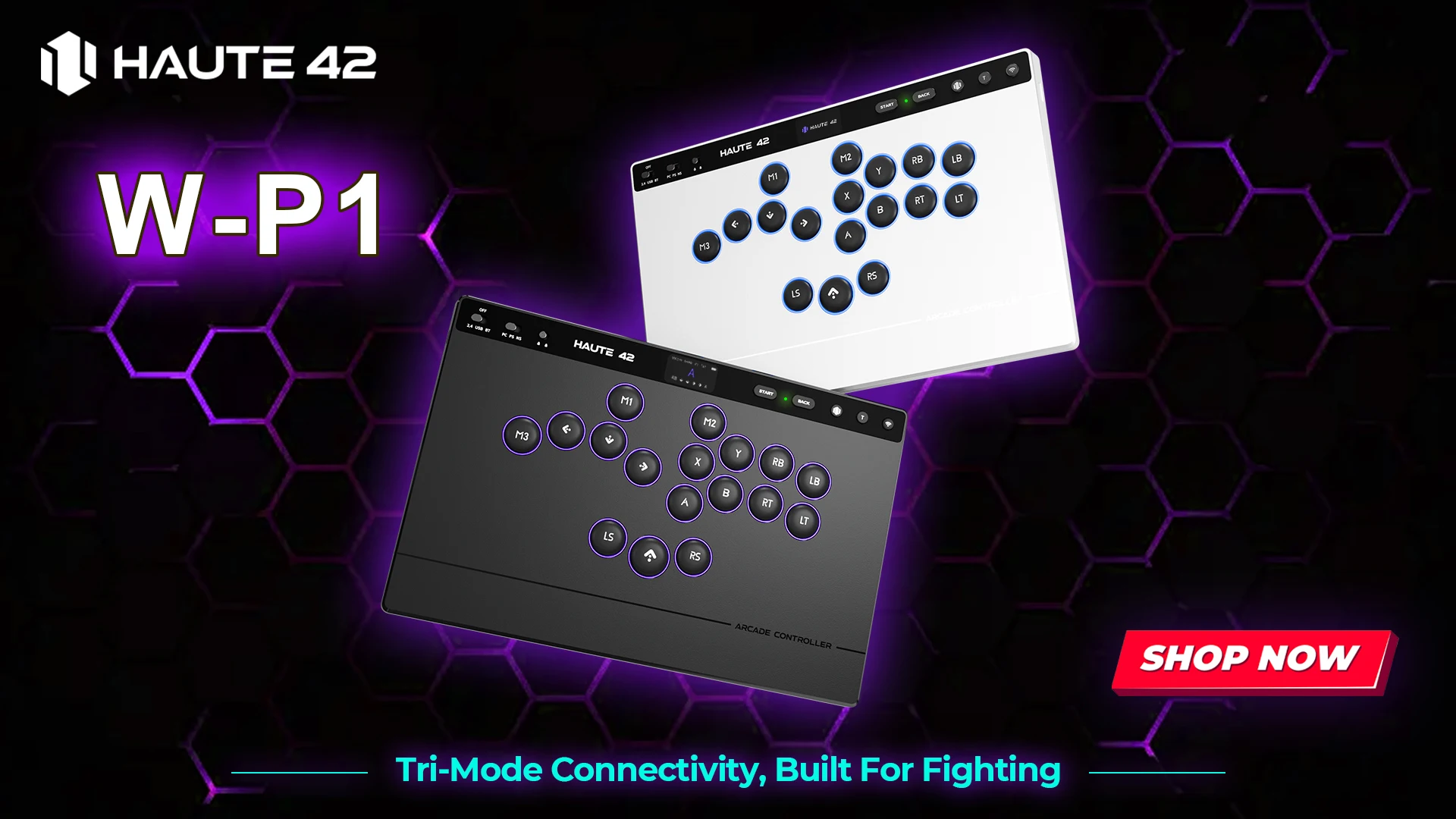
Haute42 W-P1 Tri Mode 2.4G Wireless Touch Screen Hitbox Leverless Controller For PC/PS4/PS5/Switch Stickless Arcade Controller

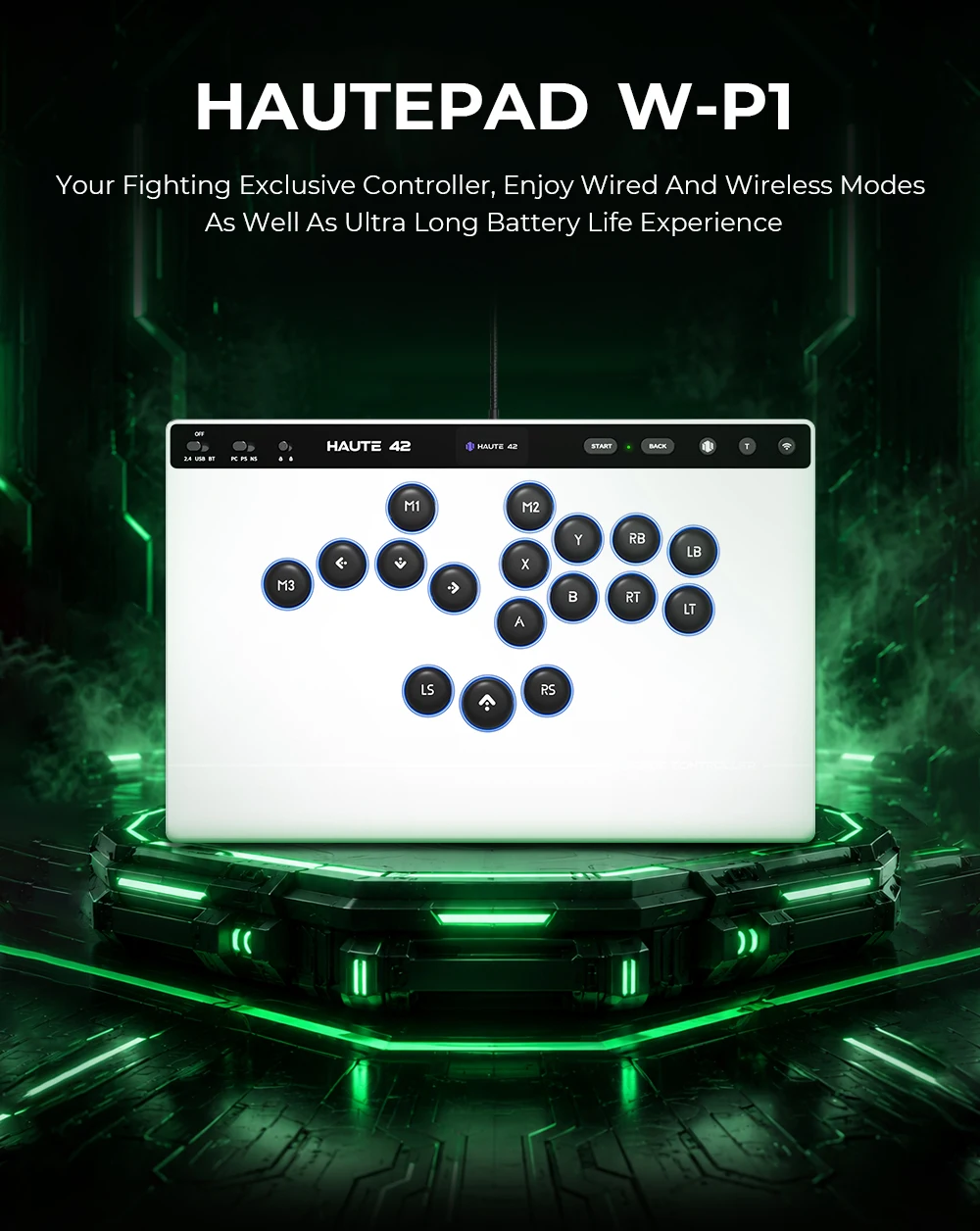
HautePad W-P1
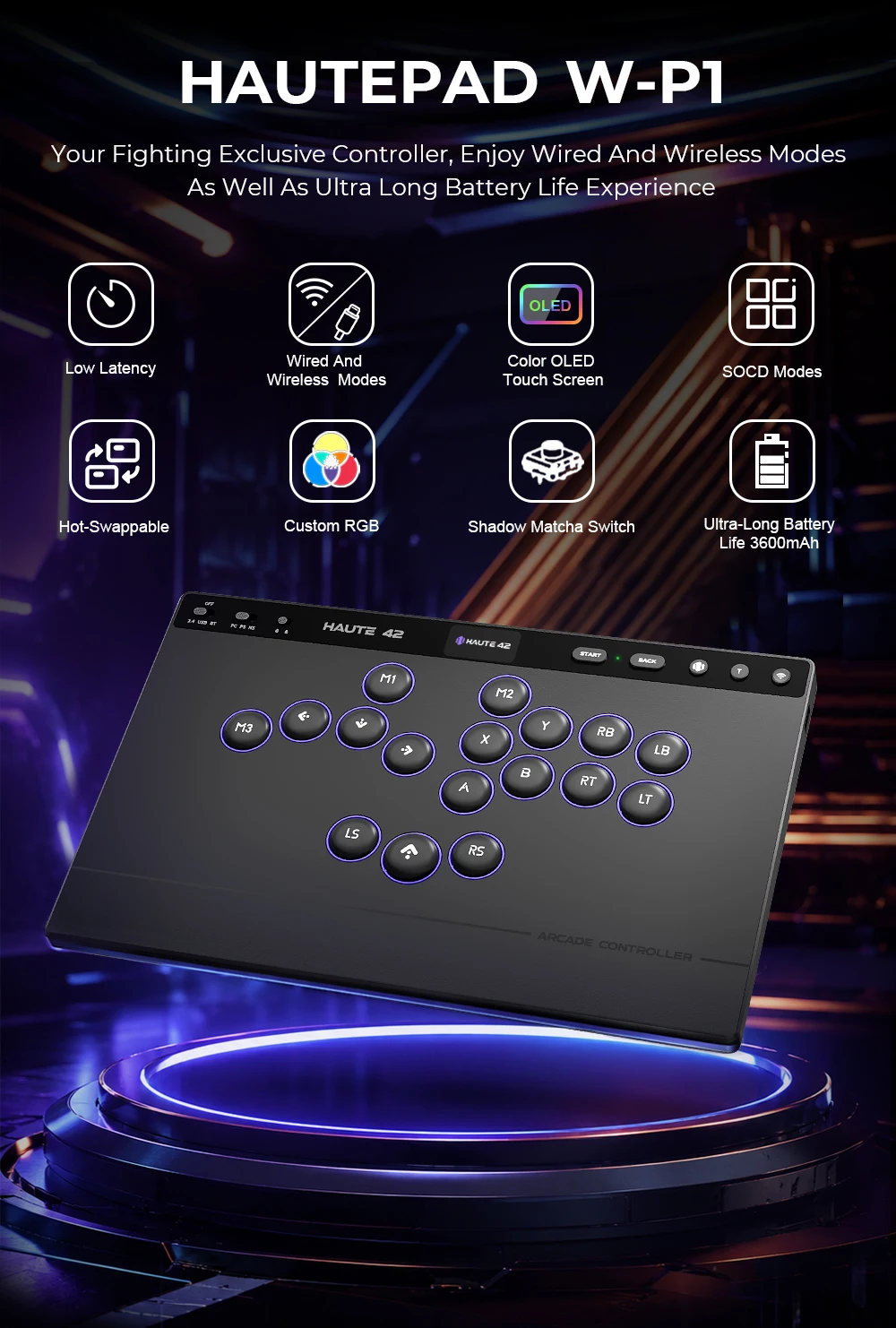
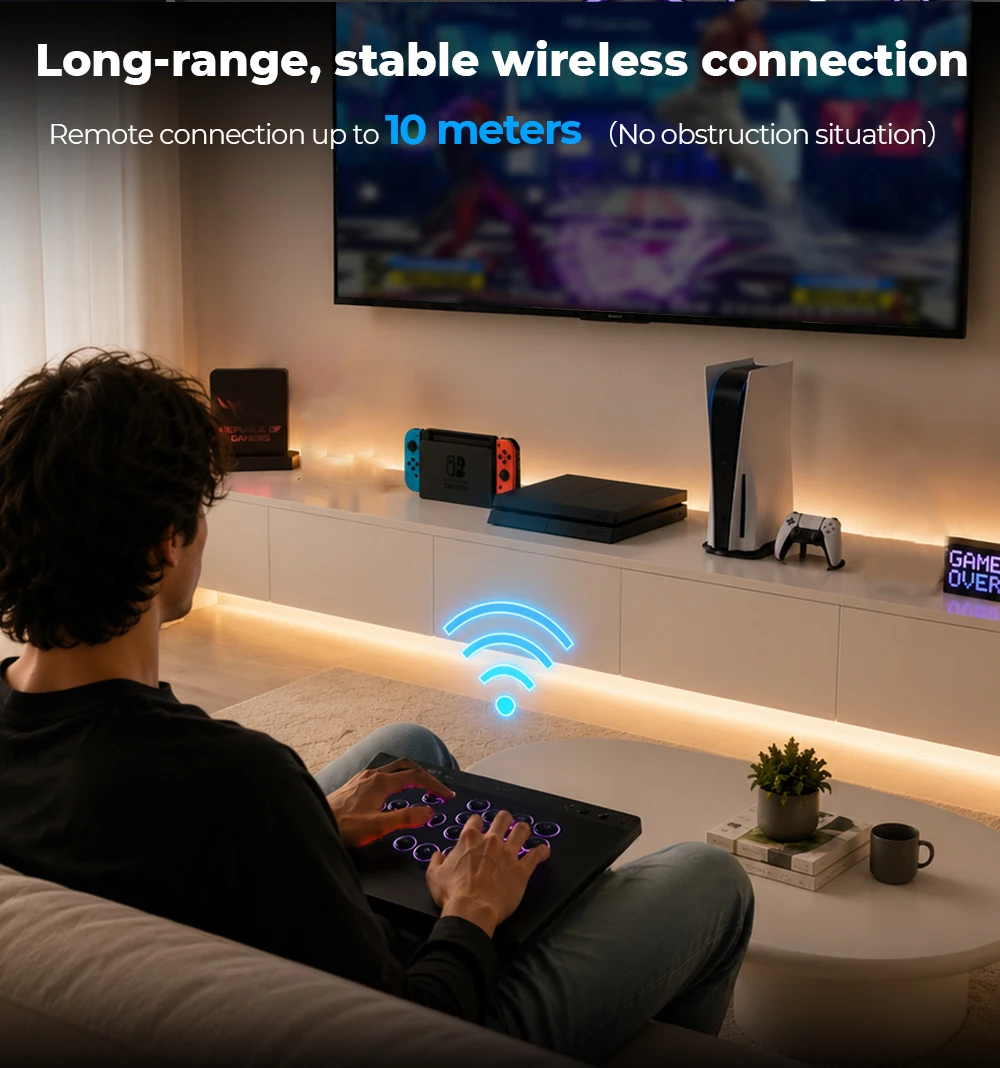
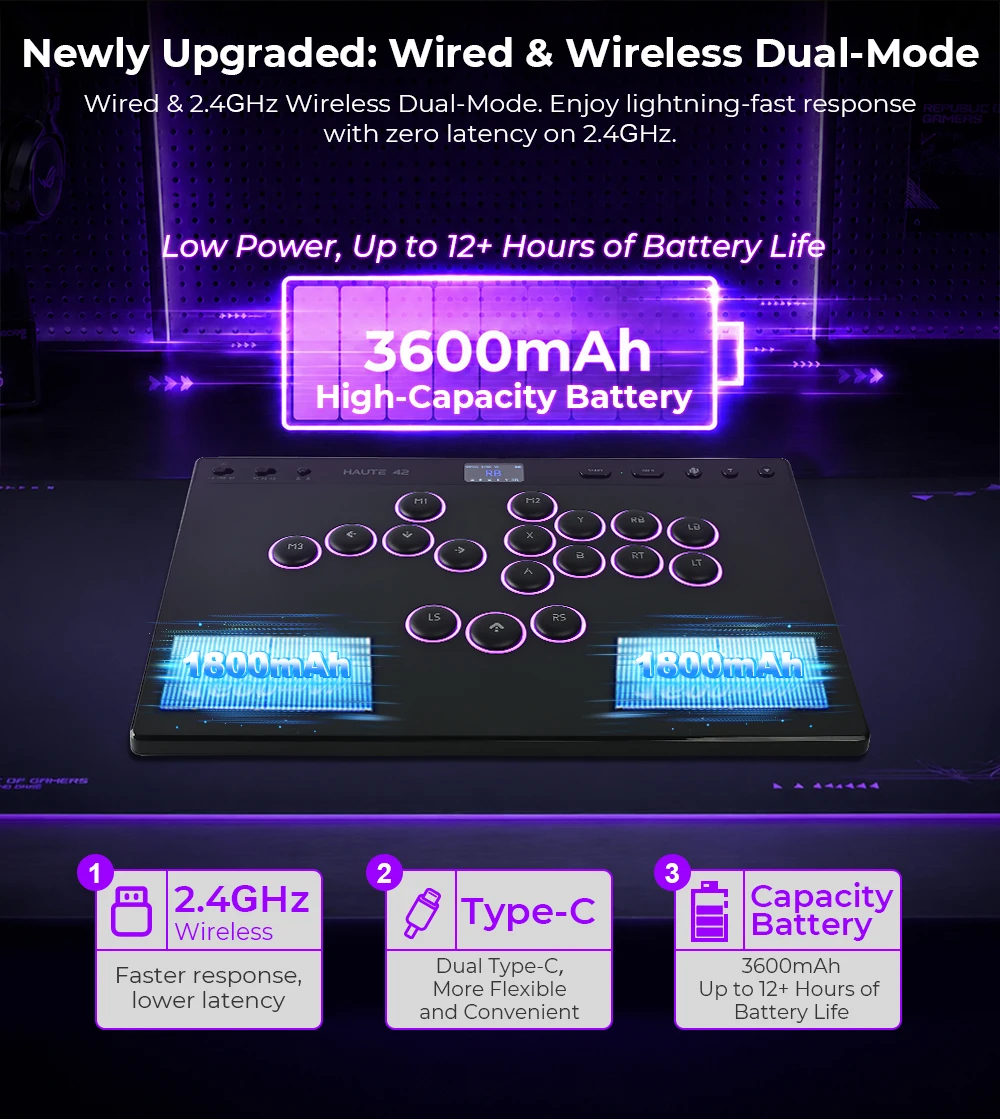
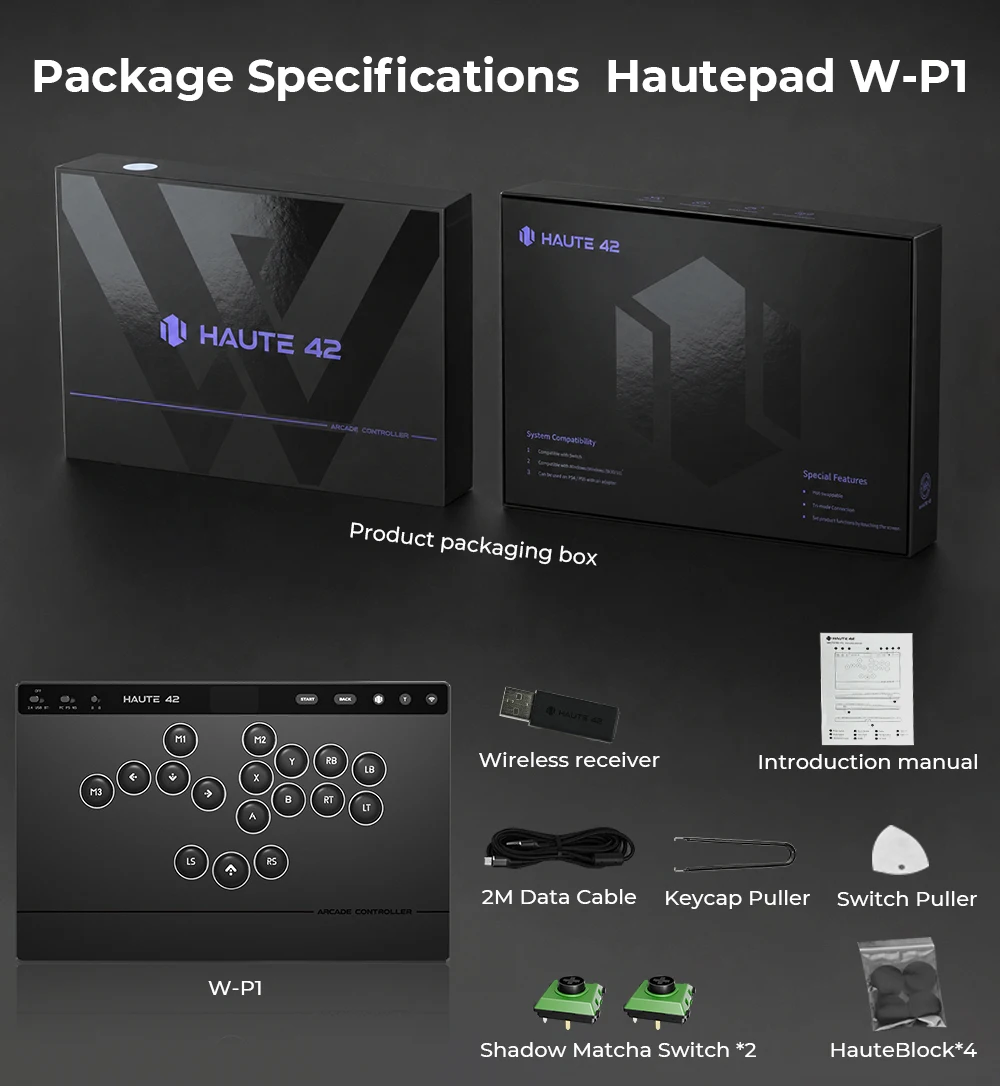
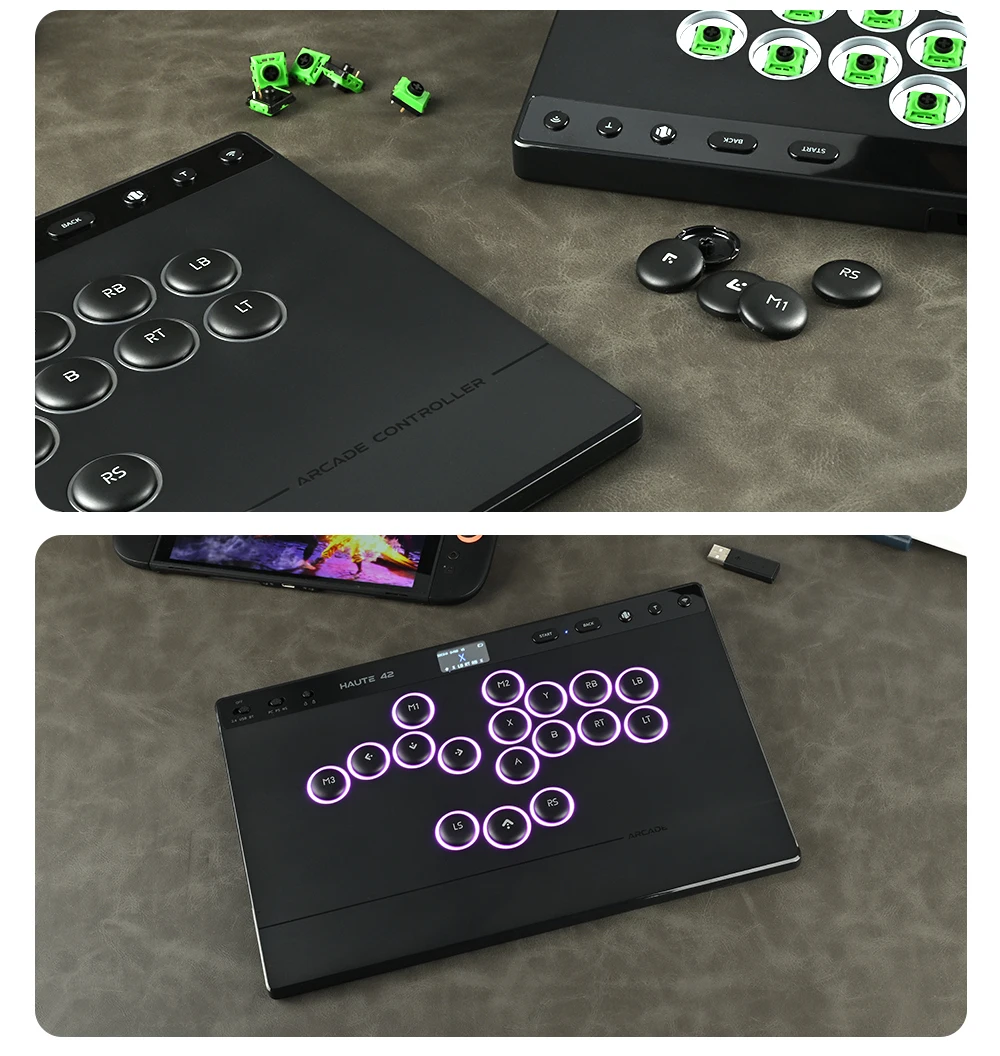
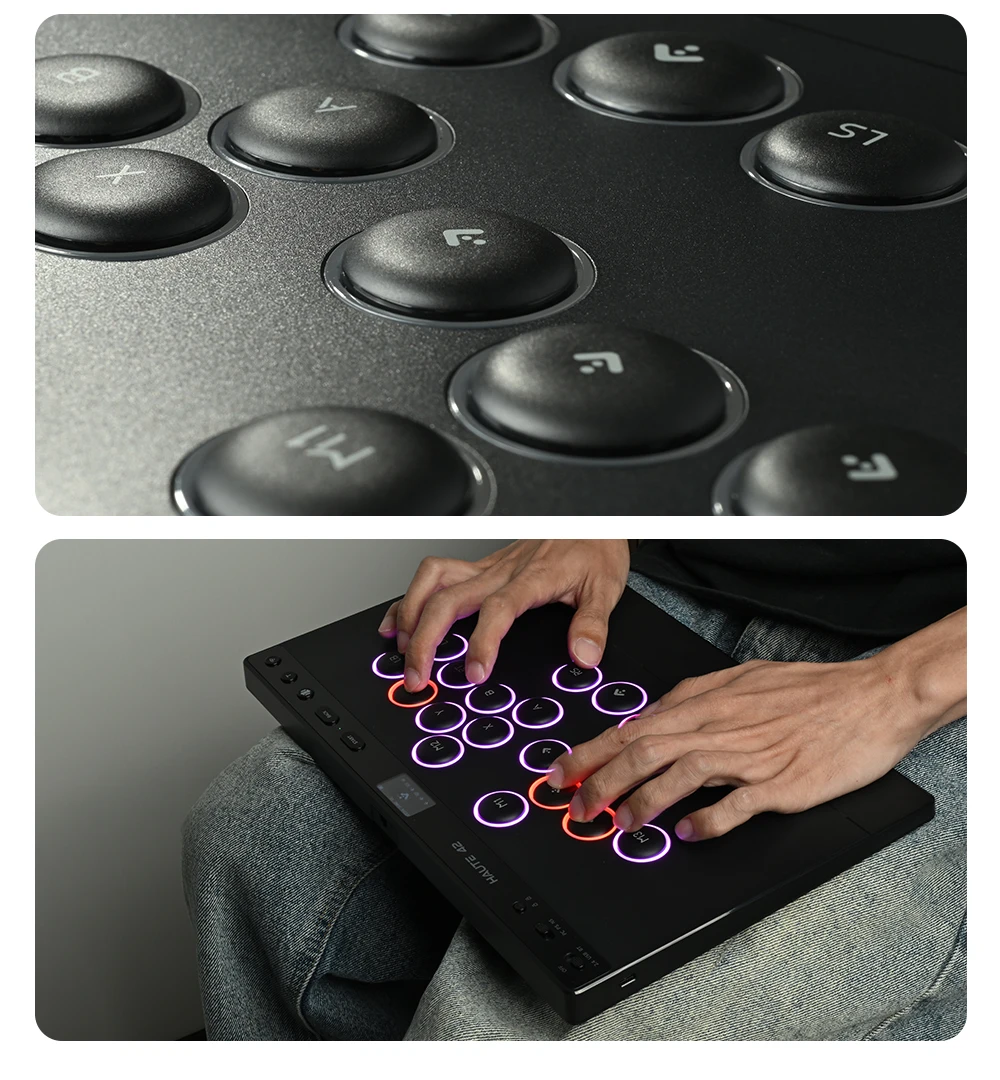
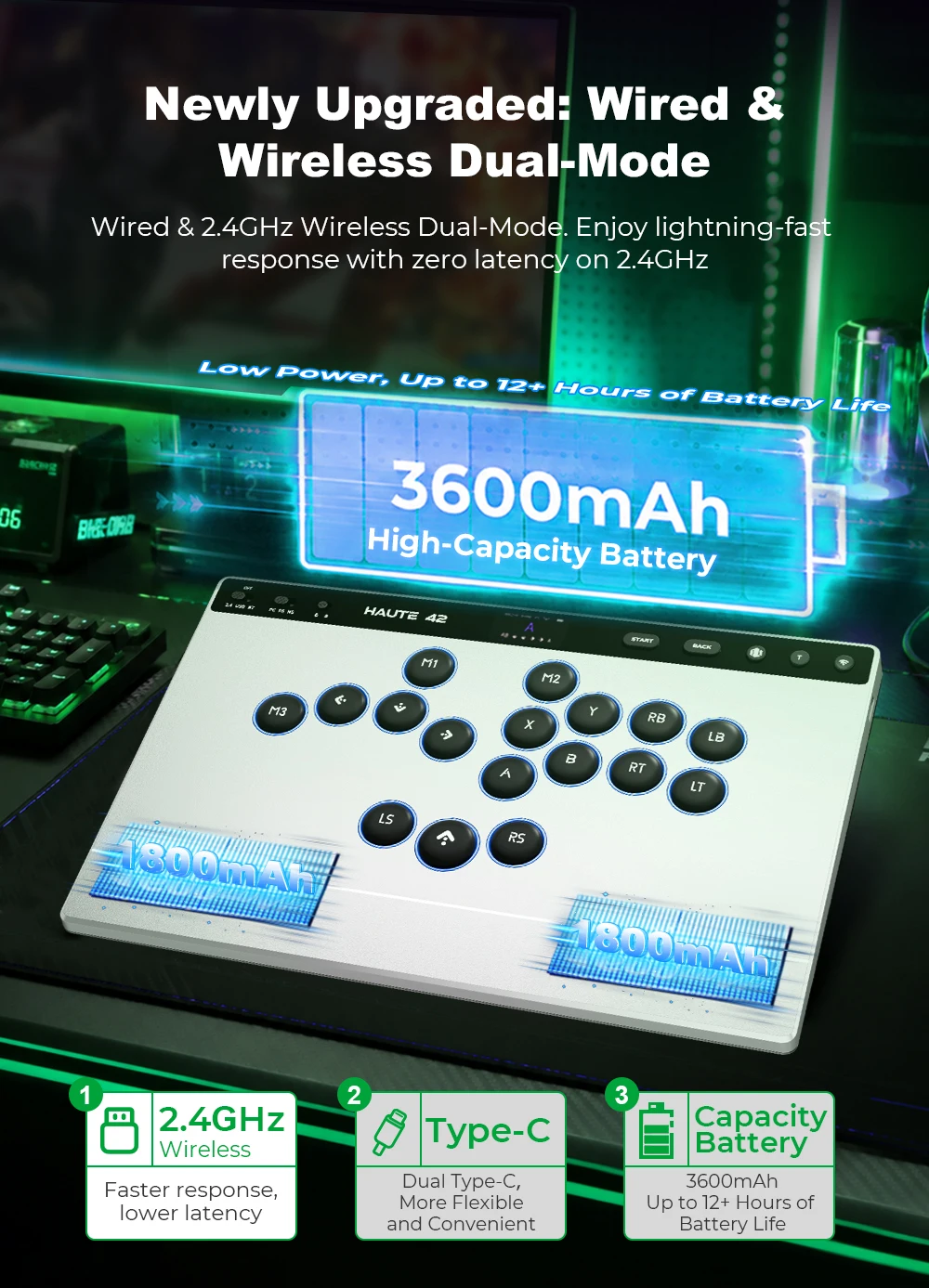
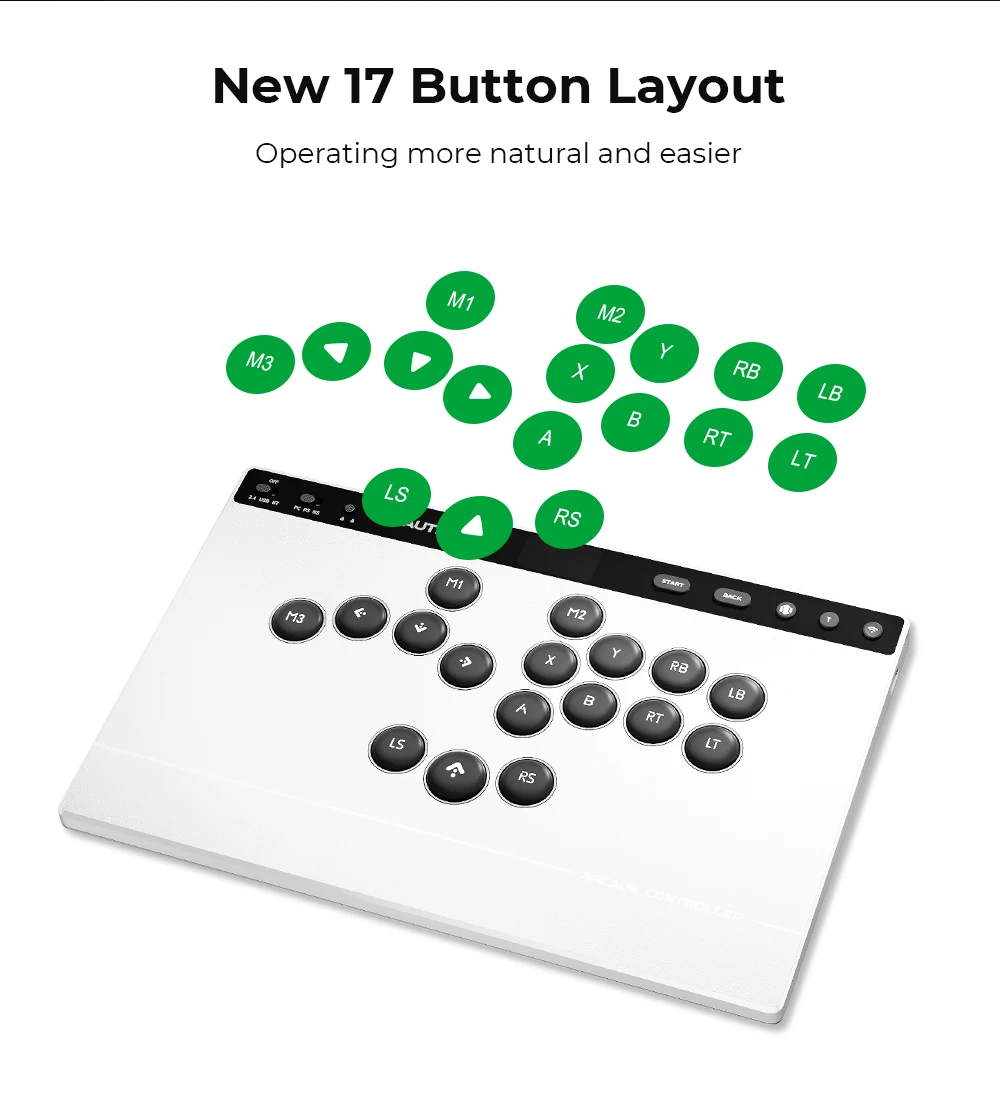
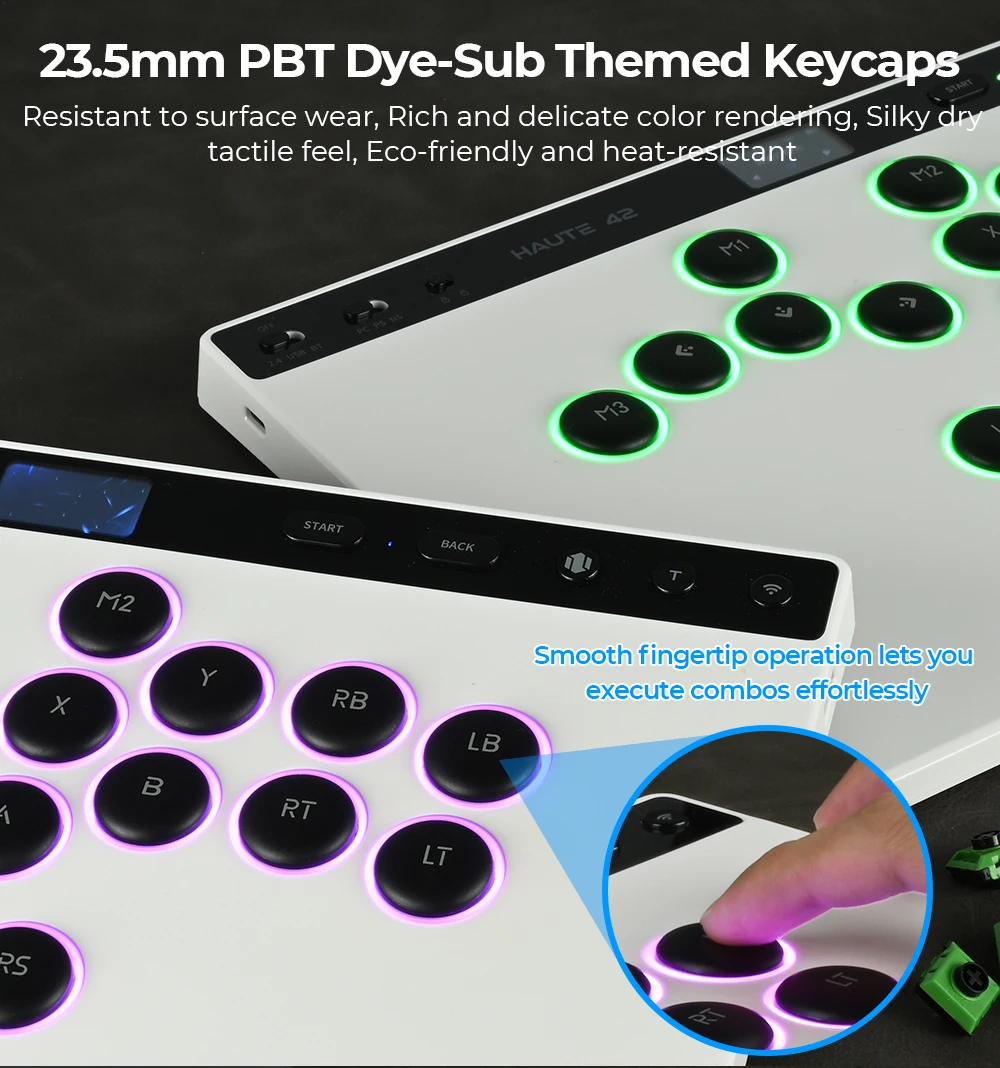
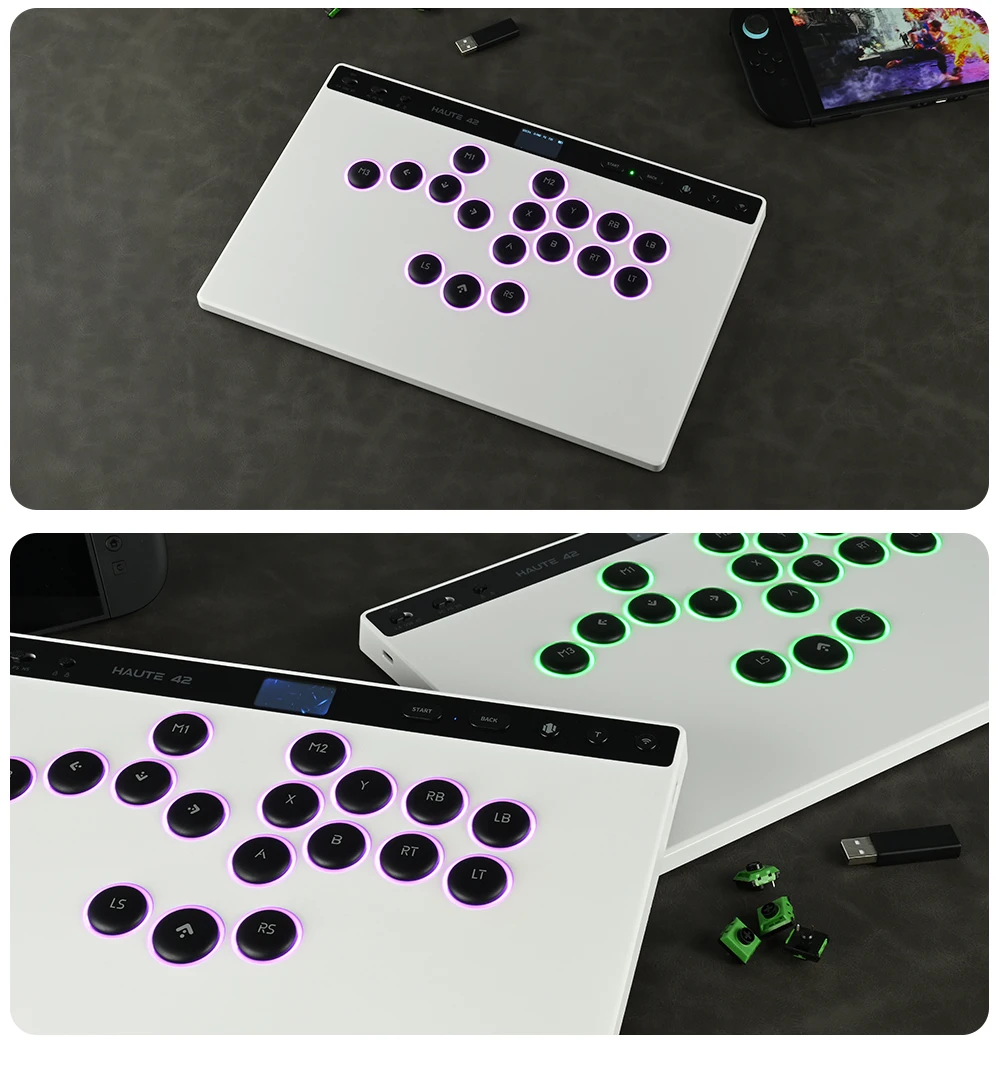
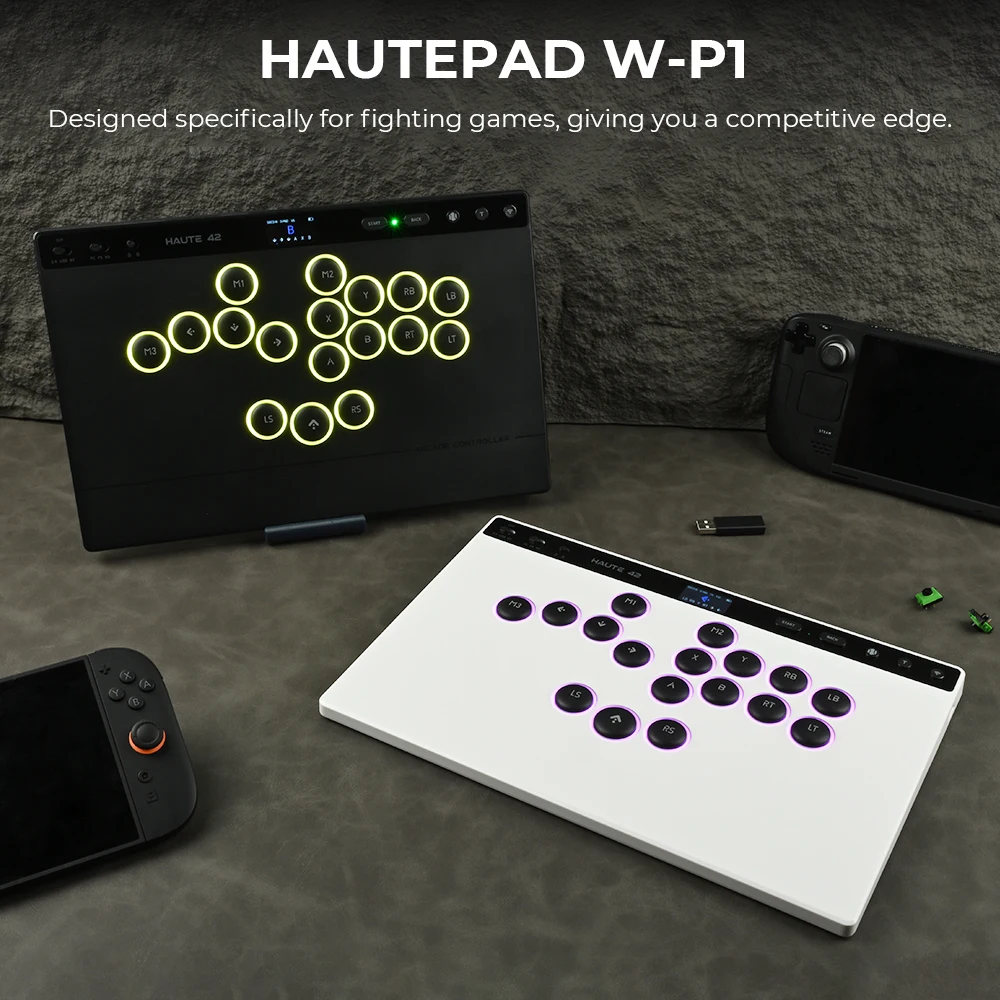
Introducing the first 3‑mode wireless hitbox leverless controller from Haute42. Featuring ultra‑low latency, it supports both wired and wireless connections, and is powered by a long‑lasting 3600mAh battery. Our self‑developed chip makes customization effortless, while the touchscreen, 17‑button layout, PBT keycaps, and ultra‑lightweight design come together to create the ideal arcade controller for you
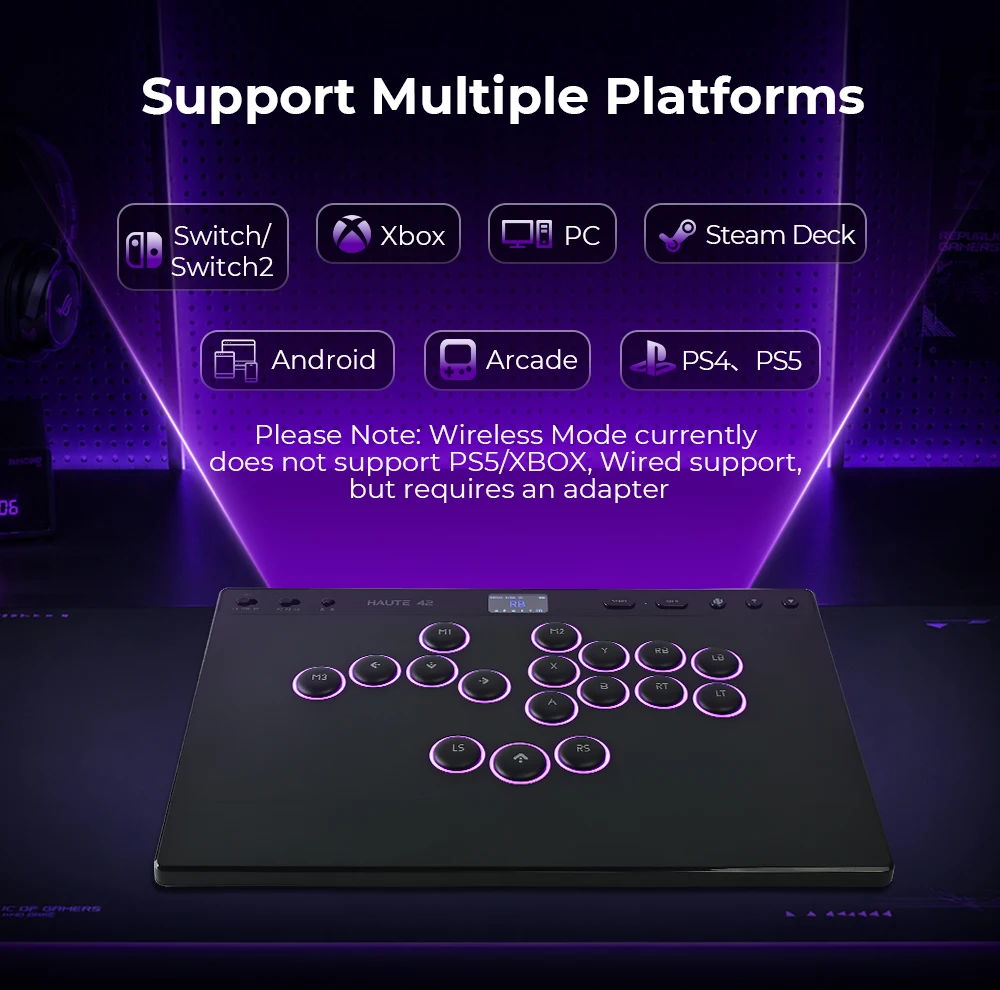
01 Input Mode
PC Mode:Windows/Steam
NS Mode:Switch1/Switch2
PS Mode:PS5/PS4(For use with the adapter)
02 Tri-mode connectivity
22.4GHz wireless connection
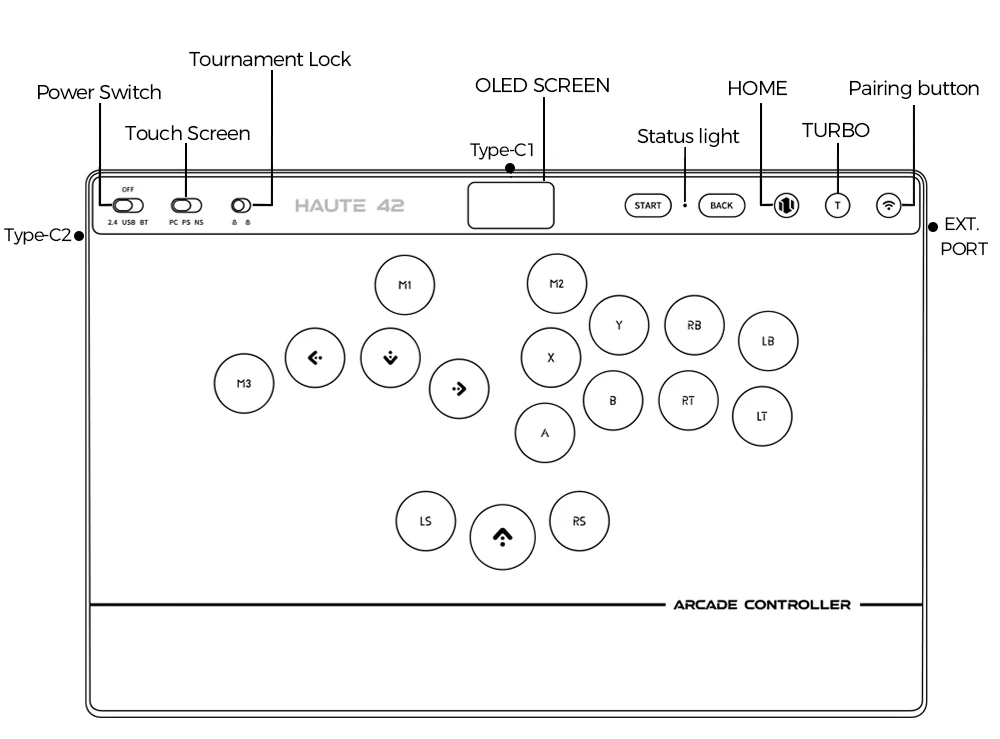
*Set the power switch to the 2.4GHz position
*Plug the receiver into a USB port on your Windows device
*Once connected, the indicator lights on both the controller and the receiver will remain solid
Switch connection
*Set the power switch to the BT position and the mode switch to the NS position
*Press and hold the pairing button for about 3 seconds until the indicator light starts
*flashing rapidly to enter pairing mode (pairing is only required for the first connection)
*On your Nintendo Switch, open "Controllers," then select "Change Grip/Order." Wait for thecontroller to connect. Once connected, the LED indicator will remain solid.
Wired connection
*Set the power switch to the USB positionsystem has recognized the device, it is ready to use
*Connect the controller to a USB port on your Windows device using a USB cable. Once the
system has recognized the device, it is ready to use
Re-pair the receiver
If the connection is lost or the receiver is replaced, you can re-pair the receiver
using the following method
*Set the power switch to the 2.4GHz position
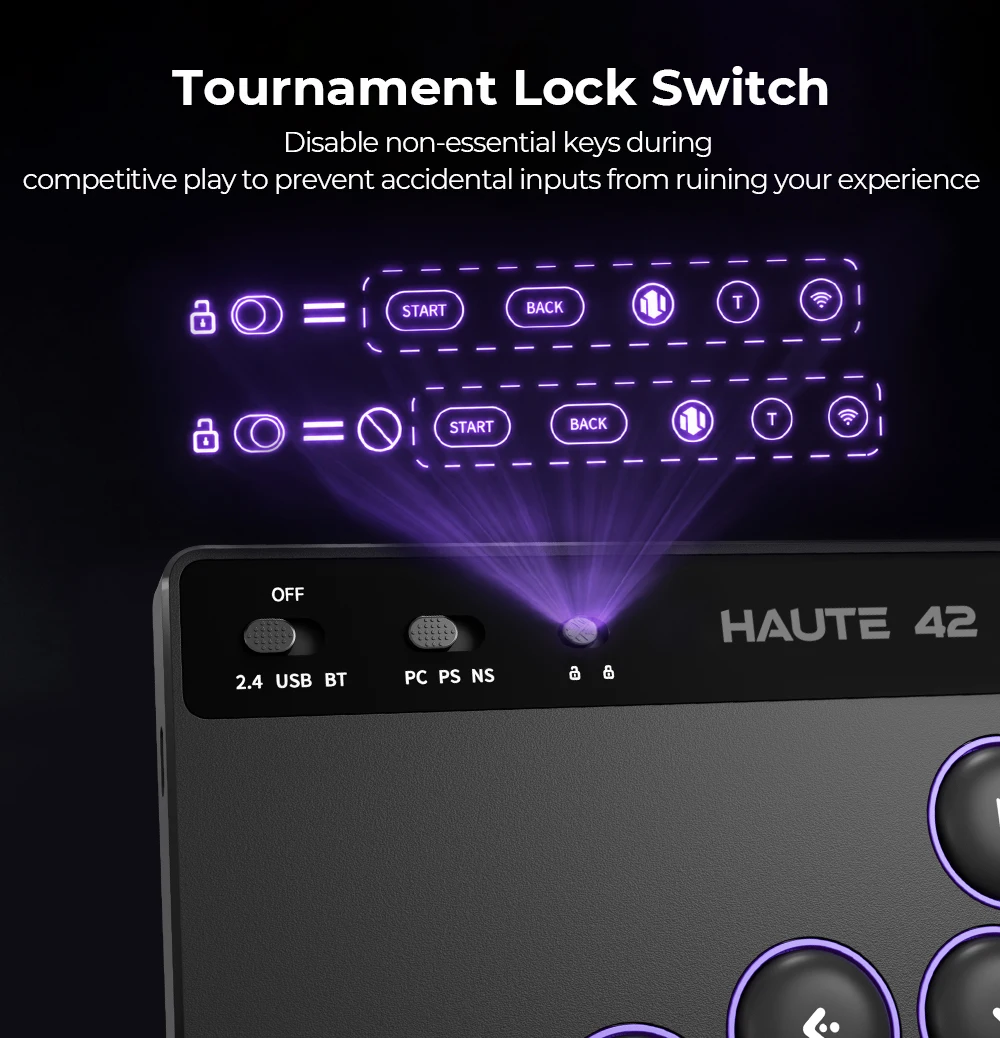
*Set the tournament lock switch to the unlock position
*starts flashing rapidly to enter pairing mode
*Press and hold the pairing button for about 3 seconds until the indicator light
and receiver to automatically pair and connect
*Plug the receiver into a USB port on your Windows device and wait for the controller
*Once connected, the indicator lights on both the controller and the receiver will remain solid
03 Touch Screen
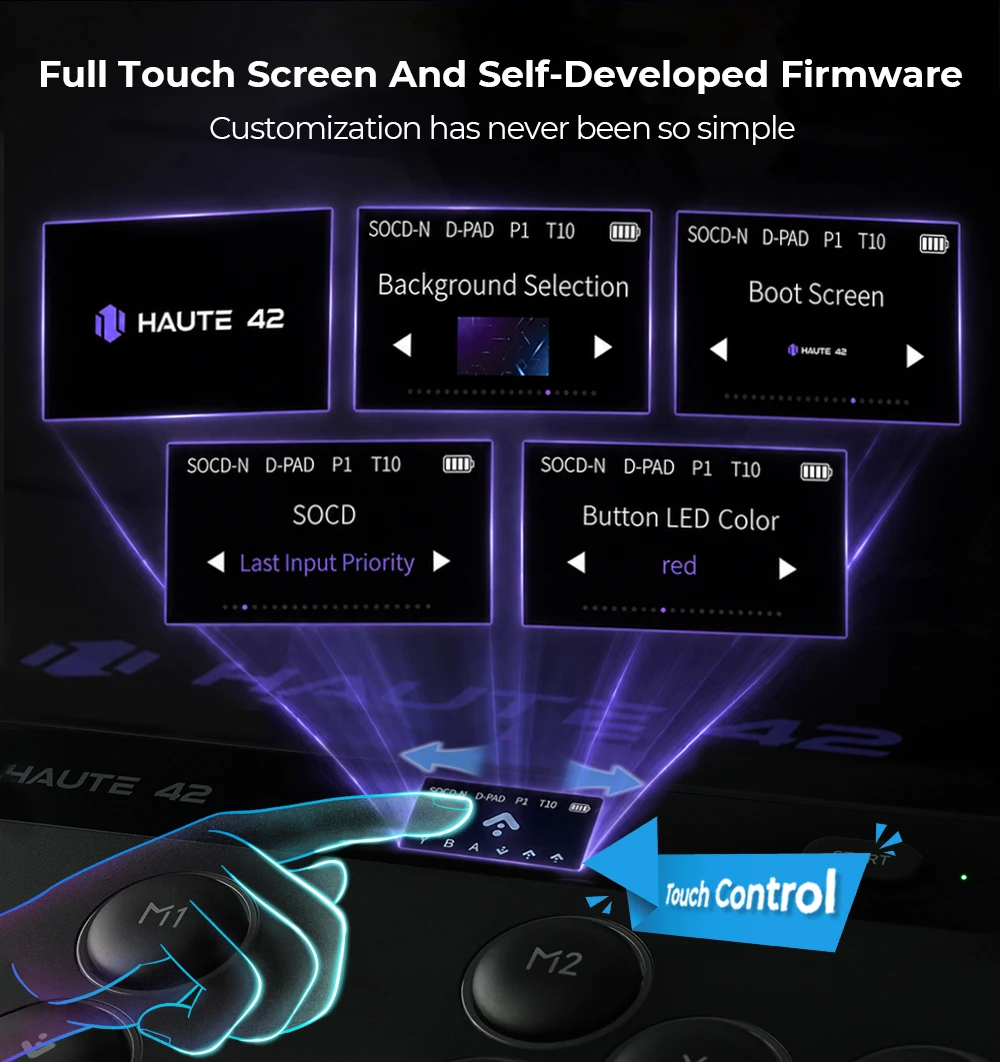
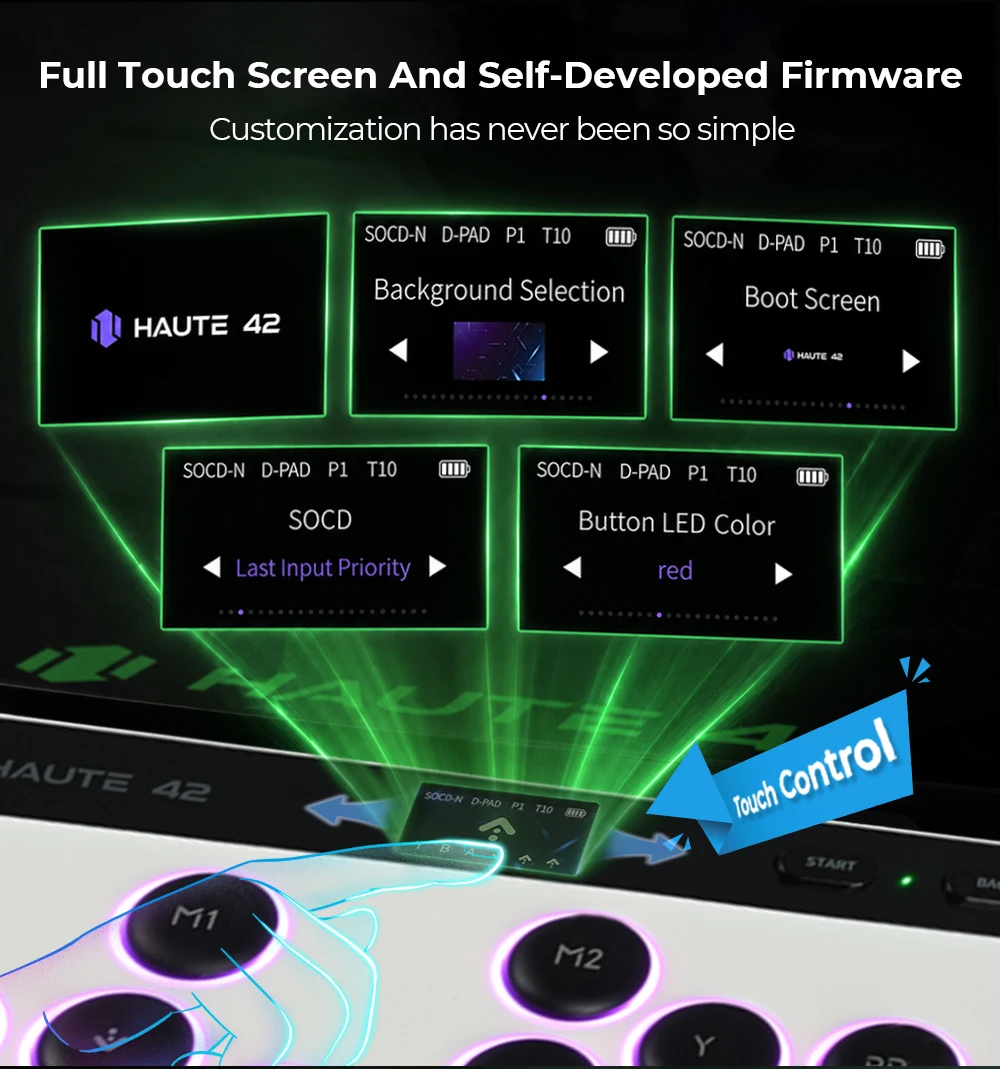
*The status bar at the top of the touch screen displays the following indicators fromleft to right: SOCD, directional mode, profile, turbo speed, and battery level
*The center of the touch screen displays the current input key values, while the lower section shows the history of input key values
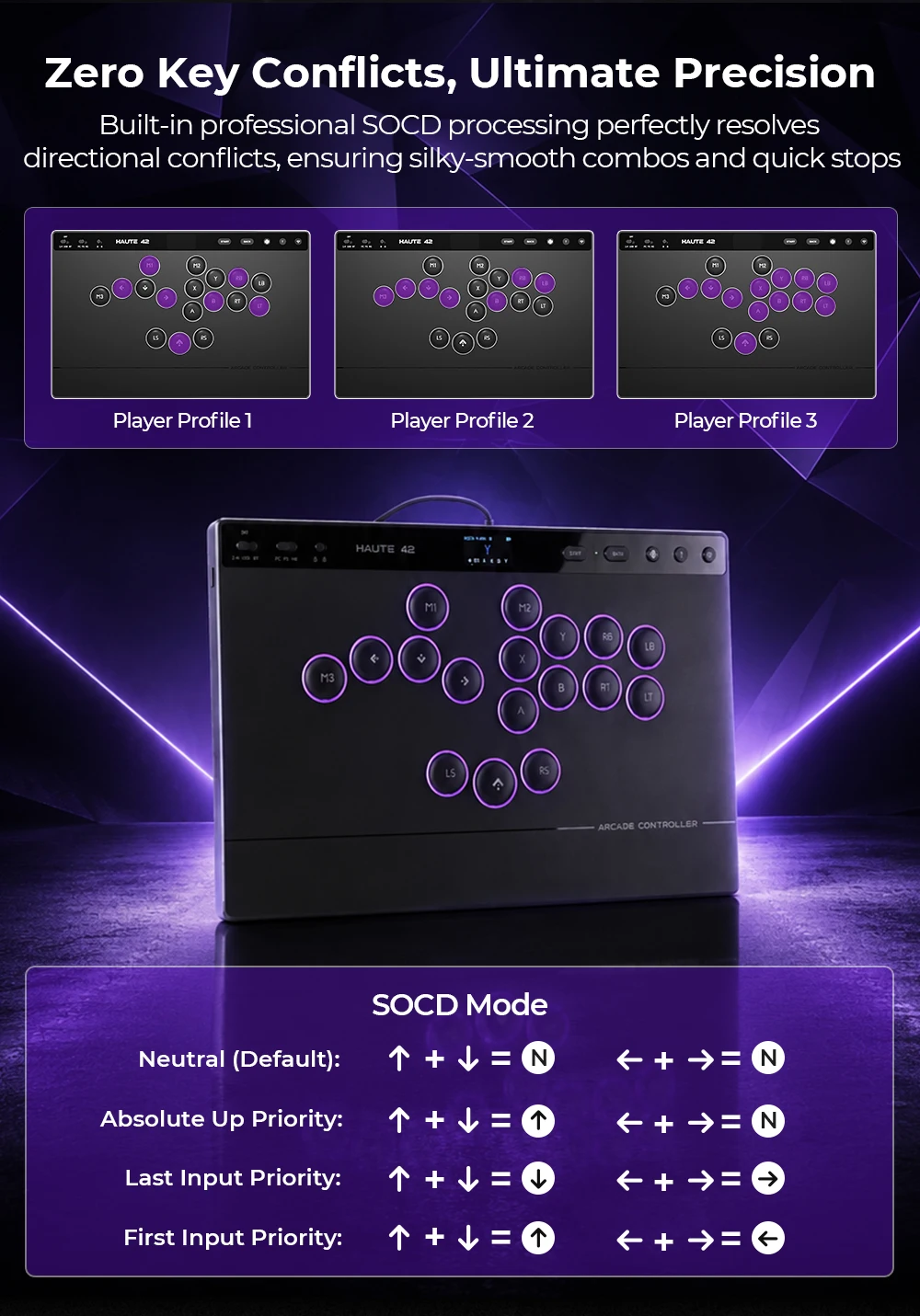
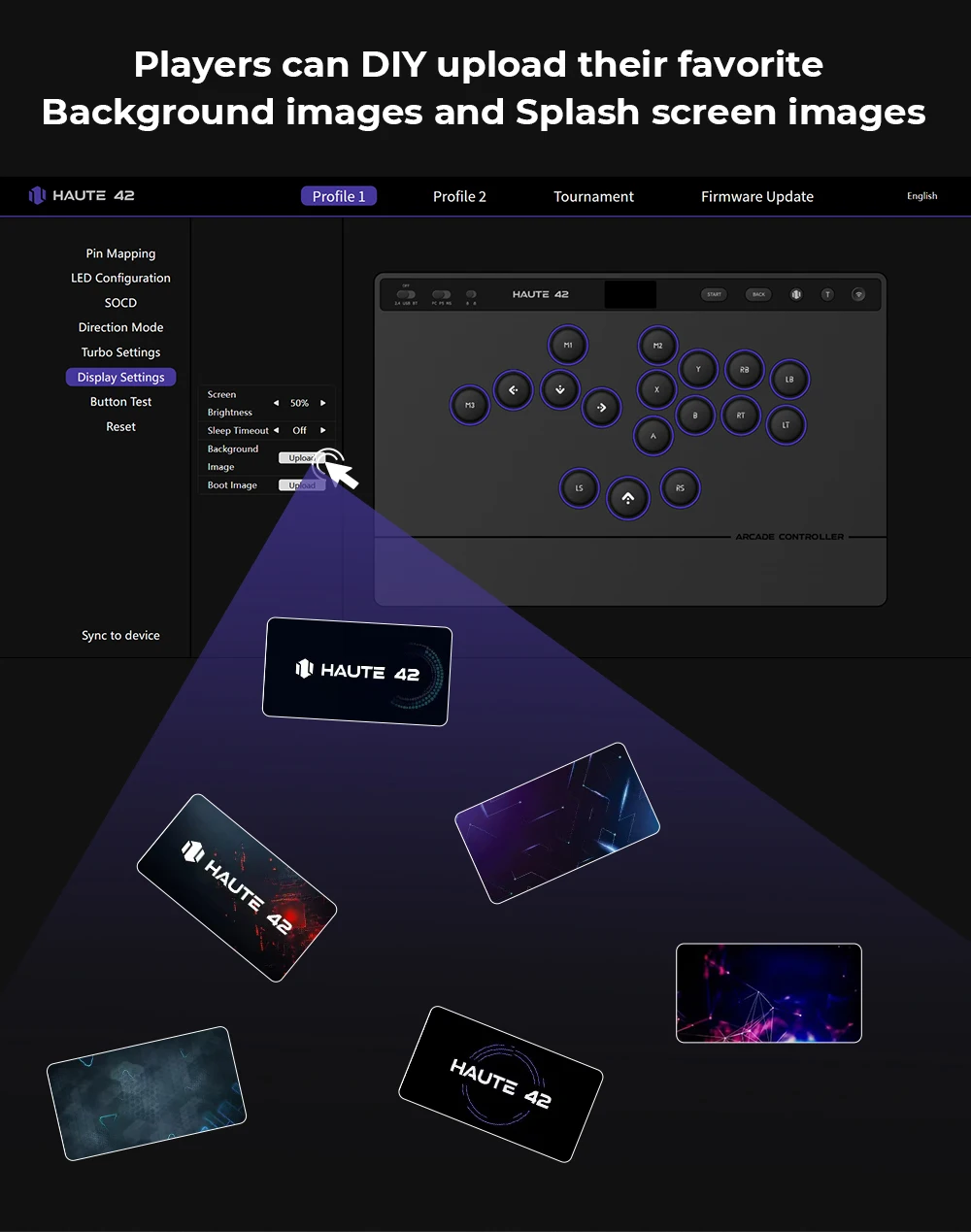
*Swipe left on the touch screen to enter the settings menu, where you can configureprofiles, key mapping, lighting, turbo settings, directional mode, SOCD, and other options
*Note: The touch screen will automatically enter sleep mode after 10 minutes of inactivity.
Tap the screen to wake it up
04 Key Mapping
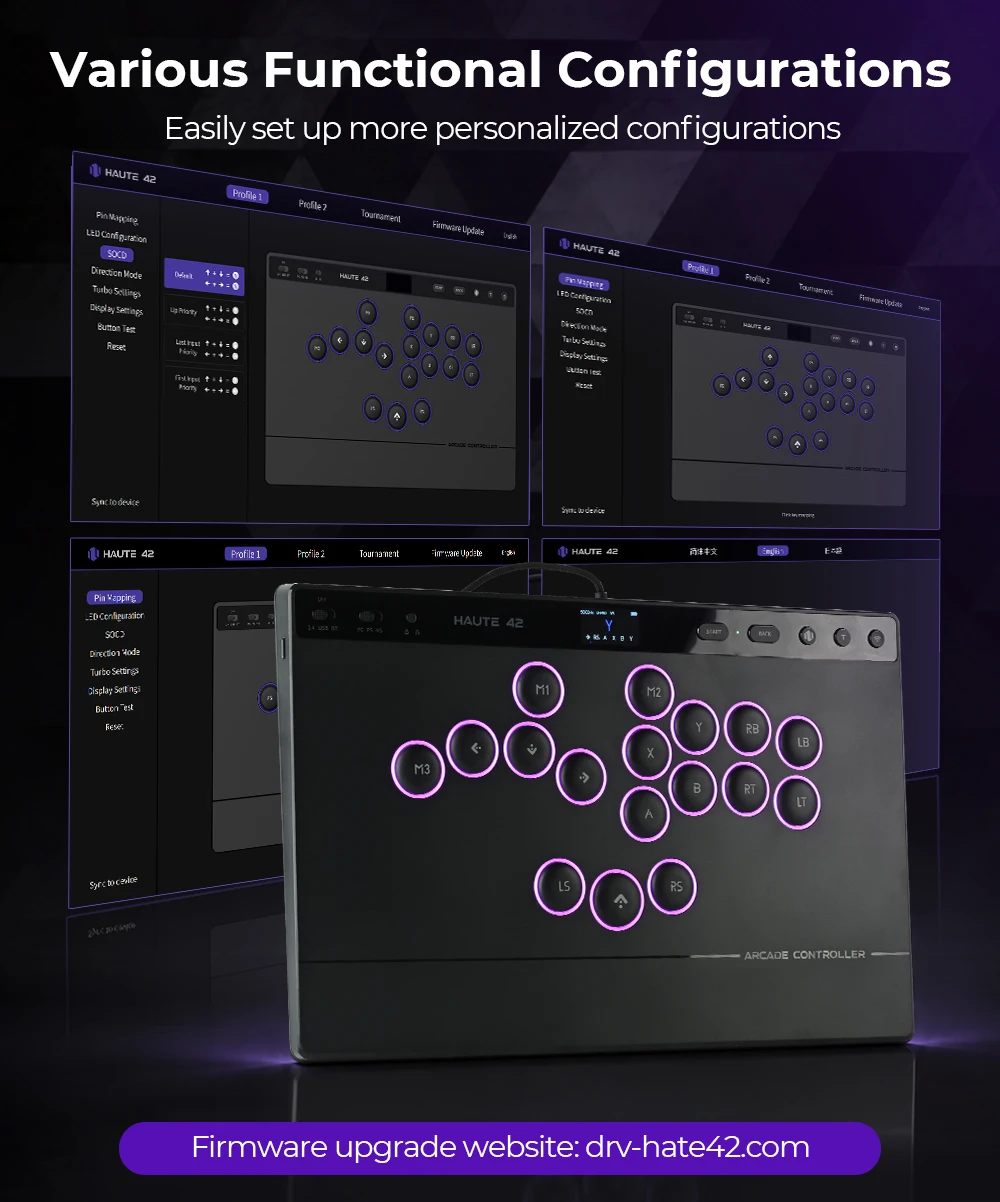
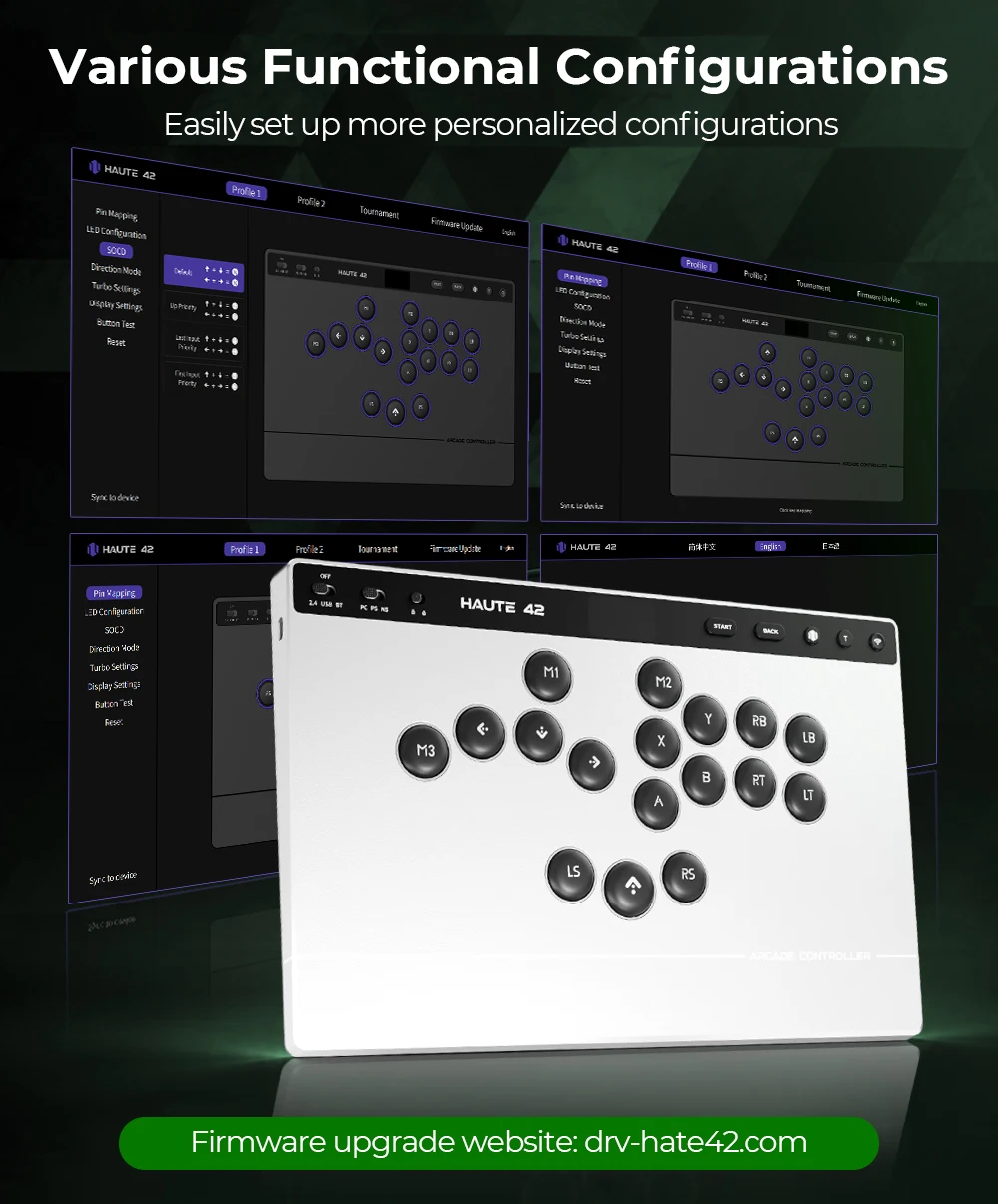
*Connect to a PC to modify key mapping
*Key mapping can be customized directly on the touch screen
*Note: Visit drv-haute42.com for additional settings and advanced configuration options
05 RGB Lighting
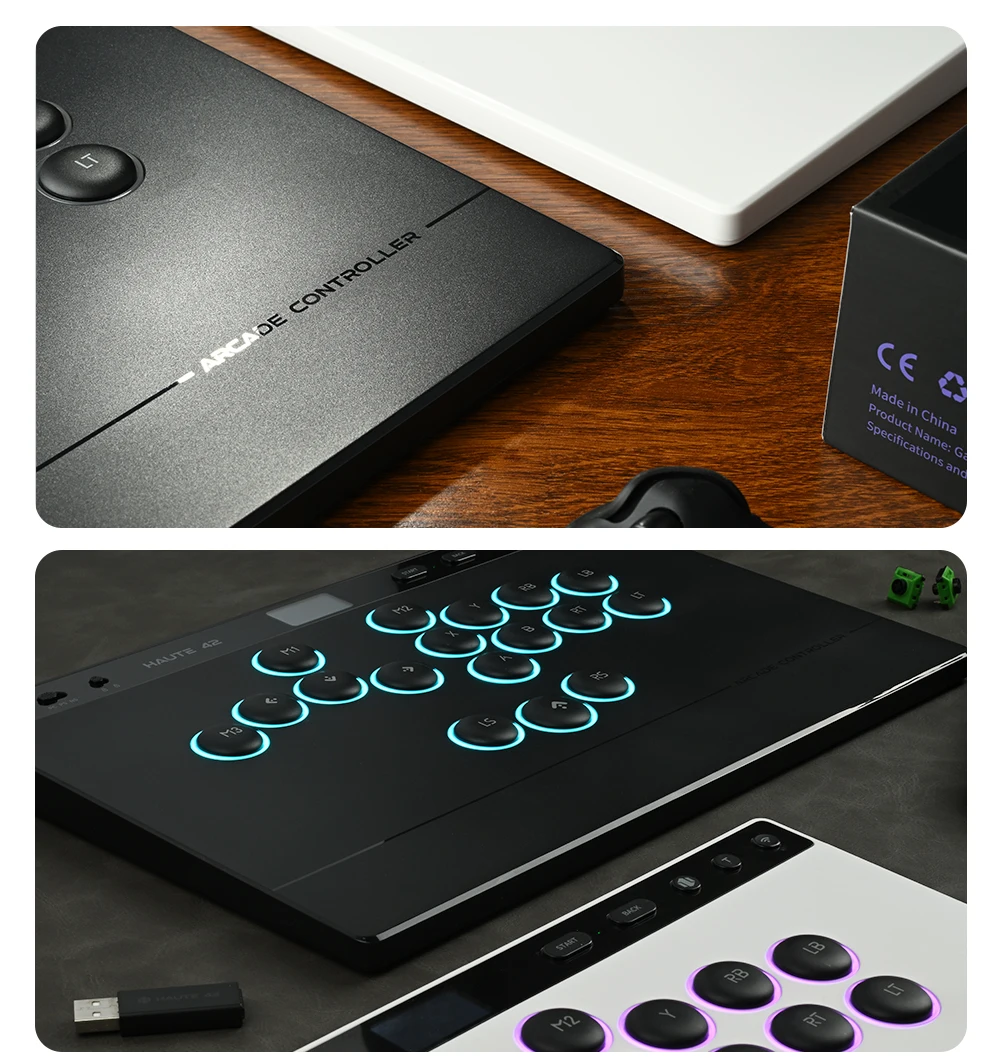
*Connect to a PC to customize RGB colors, brightness, and lighting modes
*RGB colors, brightness, and lighting modes can be adjusted directly on the touch screen
*Note: Visit drv-haute42.com for additional settings and advanced configuration options